Modulino Knob + UNO Q - Live Gauge example
Basic example on how to use the Modulino Knob together with the Arduino UNO Q
Devices & Components
1
Arduino® UNO™ Q 2GB
1
Modulino™ Knob
Software & Tools
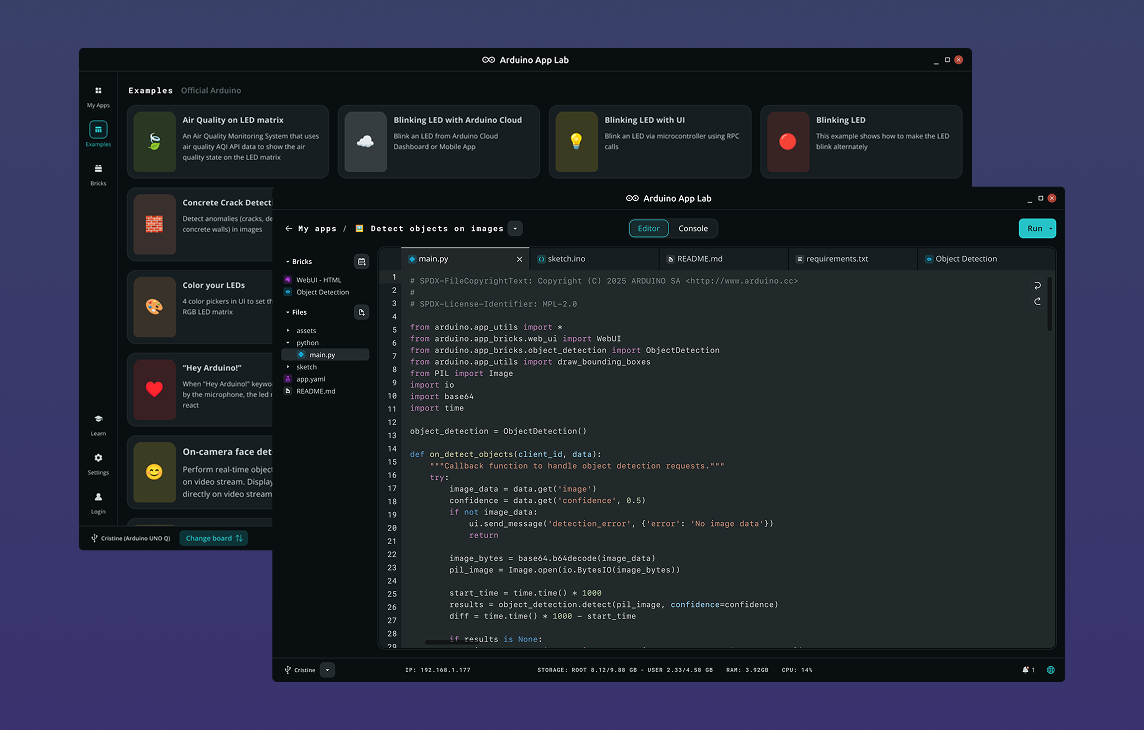
Arduino App Lab
Project description
Code
index
markup
Web UI code
1<!DOCTYPE html>
2<html lang="en">
3<head>
4  <meta charset="UTF-8" />
5  <meta name="viewport" content="width=device-width, initial-scale=1.0" />
6  <title>Modulino Knob — Live Gauge</title>
7  <style>
8    /* ── Base ─────────────────────────────────────────────────── */
9    * { box-sizing: border-box; margin: 0; padding: 0; }
10
11    body {
12      font-family: "Segoe UI", Arial, sans-serif;
13      background: #0f1117;
14      color: #e0e0e0;
15      display: flex;
16      flex-direction: column;
17      align-items: center;
18      justify-content: center;
19      min-height: 100vh;
20      gap: 24px;
21    }
22
23    h1 {
24      font-size: 1.4rem;
25      letter-spacing: 0.05em;
26      color: #a0c8ff;
27    }
28
29    /* ── Gauge container ─────────────────────────────────────── */
30    .gauge-wrap {
31      position: relative;
32      width: 260px;
33      height: 260px;
34    }
35
36    svg.gauge { width: 100%; height: 100%; }
37
38    /* Value label inside the gauge */
39    .gauge-label {
40      position: absolute;
41      bottom: 30px;
42      width: 100%;
43      text-align: center;
44      font-size: 2.4rem;
45      font-weight: 700;
46      color: #ffffff;
47    }
48
49    .gauge-unit {
50      font-size: 0.9rem;
51      color: #888;
52      text-align: center;
53      margin-top: -8px;
54    }
55
56    /* ── Buttons ─────────────────────────────────────────────── */
57    .btn-row {
58      display: flex;
59      gap: 12px;
60    }
61
62    button {
63      padding: 10px 28px;
64      border: none;
65      border-radius: 8px;
66      font-size: 1rem;
67      cursor: pointer;
68      transition: opacity 0.2s;
69    }
70
71    button:active { opacity: 0.7; }
72
73    #btn-reset {
74      background: #3a7bd5;
75      color: #fff;
76    }
77
78    /* ── Status badge ────────────────────────────────────────── */
79    #status {
80      font-size: 0.82rem;
81      color: #666;
82    }
83
84    #btn-indicator {
85      display: inline-block;
86      width: 10px; height: 10px;
87      border-radius: 50%;
88      background: #333;
89      margin-right: 6px;
90      transition: background 0.15s;
91    }
92
93    #btn-indicator.active { background: #4caf50; }
94  </style>
95</head>
96<body>
97
98  <h1>🎛️ Modulino Knob — Live Gauge</h1>
99
100  <!-- SVG Gauge -->
101  <div class="gauge-wrap">
102    <svg class="gauge" viewBox="0 0 200 200" xmlns="http://www.w3.org/2000/svg">
103      <!-- Background arc (full range, dimmed) -->
104      <path id="arc-bg" fill="none" stroke="#2a2a3a" stroke-width="18"
105            stroke-linecap="round" />
106      <!-- Foreground arc (current value) -->
107      <path id="arc-fg" fill="none" stroke="#3a7bd5" stroke-width="18"
108            stroke-linecap="round" />
109    </svg>
110    <div class="gauge-label" id="gauge-value">0</div>
111    <div class="gauge-unit">/ 100</div>
112  </div>
113
114  <!-- Controls -->
115  <div class="btn-row">
116    <button id="btn-reset">⟳ Reset</button>
117  </div>
118
119  <!-- Knob button status -->
120  <div id="status">
121    <span id="btn-indicator"></span>
122    Knob button: <span id="btn-state">released</span>
123  </div>
124
125  <script>
126    // ── SVG arc helpers ────────────────────────────────────────
127    const CX = 100, CY = 100, R = 80;
128
129    // The gauge sweeps from 220° to -40° (a 220° arc)
130    const START_DEG = 220;
131    const END_DEG   = -40;
132    const TOTAL_DEG = START_DEG - END_DEG; // 260°
133
134    function degToRad(d) { return d * Math.PI / 180; }
135
136    function arcPath(cx, cy, r, startDeg, endDeg) {
137      const s = degToRad(startDeg);
138      const e = degToRad(endDeg);
139      const x1 = cx + r * Math.cos(s);
140      const y1 = cy - r * Math.sin(s);
141      const x2 = cx + r * Math.cos(e);
142      const y2 = cy - r * Math.sin(e);
143      const large = (startDeg - endDeg) > 180 ? 1 : 0;
144      return `M ${x1} ${y1} A ${r} ${r} 0 ${large} 1 ${x2} ${y2}`;
145    }
146
147    // Draw the static background arc once
148    document.getElementById("arc-bg").setAttribute(
149      "d", arcPath(CX, CY, R, START_DEG, END_DEG)
150    );
151
152    // ── Update the gauge with a 0-100 value ───────────────────
153    function updateGauge(value, pressed) {
154      const clamped = Math.max(0, Math.min(100, value));
155      const fraction = clamped / 100;
156      const currentDeg = START_DEG - fraction * TOTAL_DEG;
157
158      // Only draw the foreground arc when value > 0
159      if (clamped > 0) {
160        document.getElementById("arc-fg").setAttribute(
161          "d", arcPath(CX, CY, R, START_DEG, currentDeg)
162        );
163        document.getElementById("arc-fg").style.display = "";
164      } else {
165        document.getElementById("arc-fg").style.display = "none";
166      }
167
168      document.getElementById("gauge-value").textContent = clamped;
169
170      // Knob button indicator
171      const ind   = document.getElementById("btn-indicator");
172      const label = document.getElementById("btn-state");
173      if (pressed) {
174        ind.classList.add("active");
175        label.textContent = "pressed";
176      } else {
177        ind.classList.remove("active");
178        label.textContent = "released";
179      }
180    }
181
182    // ── Poll /api/state every 100 ms ──────────────────────────
183    async function poll() {
184      try {
185        const res  = await fetch("/api/state");
186        const data = await res.json();
187        updateGauge(data.value, data.pressed);
188      } catch (_) {
189        // Board not ready yet — keep trying
190      }
191    }
192
193    setInterval(poll, 100);
194
195    // ── Reset button ──────────────────────────────────────────
196    document.getElementById("btn-reset").addEventListener("click", async () => {
197      try {
198        await fetch("/api/reset", { method: "POST" });
199        // The next poll will reflect the reset value
200      } catch (_) {}
201    });
202  </script>
203</body>
204</html>
sketch
cpp
Arduino code
1/*
2 * Modulino Knob — Live Gauge
3 *
4 * Reads the rotary encoder value and the push-button state from
5 * the Modulino Knob, then forwards them to Python via Bridge.
6 *
7 * Also exposes a "reset_knob" function so Python (and the Web UI)
8 * can reset the encoder value back to zero.
9 *
10 * Hardware: Arduino UNO Q + Modulino Knob (Qwiic)
11 */
12
13#include "Modulino.h"
14#include <Arduino_RouterBridge.h>
15
16// ── Modulino object ──────────────────────────────────────────────
17ModulinoKnob knob;
18
19// ── State tracking ───────────────────────────────────────────────
20int  lastValue   = 0;   // last encoder value sent to Python
21bool lastPressed = false; // last button state sent to Python
22
23// ── Bridge callback: reset the knob to zero ──────────────────────
24// Python calls this when the user clicks "Reset" in the browser.
25bool resetKnob() {
26  knob.set(0);
27  // Immediately notify Python of the new value
28  Bridge.notify("knob_update", 0, false);
29  return true;
30}
31
32void setup() {
33  Modulino.begin();
34  knob.begin();
35
36  // Start the knob at zero (range is clamped in software to 0–100)
37  knob.set(0);
38
39  Bridge.begin();
40
41  // Expose "reset_knob" so Python can call it
42  Bridge.provide("reset_knob", resetKnob);
43}
44
45void loop() {
46  // knob.get() returns the raw int16_t encoder position; clamp to 0–100
47  int  currentValue   = constrain(knob.get(), 0, 100);
48  bool currentPressed = knob.isPressed();
49
50  // Send an update only when something has changed
51  if (currentValue != lastValue || currentPressed != lastPressed) {
52
53    // If the physical button was just pressed, reset to zero
54    if (currentPressed && !lastPressed) {
55      knob.set(0);
56      currentValue = 0;
57    }
58
59    // Notify Python: "knob_update", value, buttonPressed
60    Bridge.notify("knob_update", currentValue, (int)currentPressed);
61
62    lastValue   = currentValue;
63    lastPressed = currentPressed;
64  }
65
66  delay(50); // poll at ~20 Hz — fast enough for smooth gauge updates
67}
main
python
Python code
1# Modulino Knob — Live Gauge
2#
3# Runs on the UNO Q Linux side (MPU).
4# Receives knob updates from the sketch via Bridge, stores the
5# current state, and exposes two REST endpoints for the Web UI:
6#
7#   GET  /api/state  → returns { "value": int, "pressed": bool }
8#   POST /api/reset  → tells the sketch to reset the knob to 0
9
10from arduino.app_utils import App, Bridge
11from arduino.app_bricks.web_ui import WebUI
12
13# ── Shared state ─────────────────────────────────────────────────
14# These variables hold the latest knob value and button state so
15# the Web UI can always get a fresh reading on demand.
16state = {
17    "value":   0,
18    "pressed": False
19}
20
21# ── Bridge callback: receive updates from the sketch ─────────────
22def on_knob_update(value: int, pressed: int):
23    """Called by the sketch every time the knob value or button changes."""
24    state["value"]   = value
25    state["pressed"] = bool(pressed)
26
27Bridge.provide("knob_update", on_knob_update)
28
29# ── WebUI setup ──────────────────────────────────────────────────
30ui = WebUI()
31
32def get_state():
33    """
34    GET /api/state
35    Returns the current knob value and button state as JSON.
36    The browser polls this endpoint every 100 ms.
37    """
38    return {
39        "value":   state["value"],
40        "pressed": state["pressed"]
41    }
42
43def post_reset():
44    """
45    POST /api/reset
46    Tells the sketch to reset the encoder value to 0.
47    The sketch will then send a knob_update notification back,
48    so the UI gauge snaps to zero on both sides.
49    """
50    Bridge.call("reset_knob")
51    return {"ok": True}
52
53ui.expose_api("GET",  "/api/state",  get_state)
54ui.expose_api("POST", "/api/reset",  post_reset)
55
56# ── Start the app ────────────────────────────────────────────────
57App.run()
Arduino App Lab
Modulino Knob - Live Gauge
Real-time SVG gauge driven by the Modulino Knob. Reset from the browser or the physical button.
🎛️
Modulino Knob - Live Gauge
Comments
Only logged in users can leave comments