Modulino Joystick + UNO Q – Live Monitor
Real-time Modulino Joystick X/Y position and rich click-button event tracking (press, release, and double-tap) streamed to the UNO Q.
Devices & Components
1
Arduino® UNO™ Q 2GB
1
Modulino™ Joystick
Software & Tools
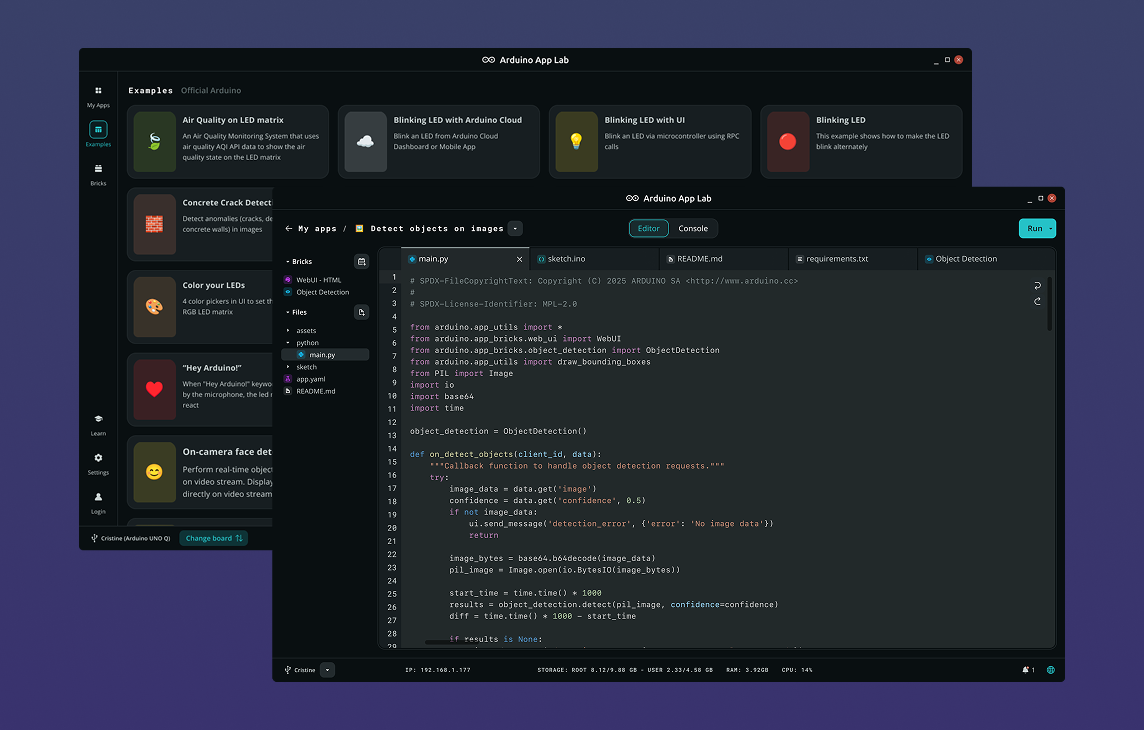
Arduino App Lab
Project description
Code
main
python
Python main
1import json
2import os
3
4from arduino.app_utils import App, Bridge
5from arduino.app_bricks.web_ui import WebUI
6
7_ui_dir = os.path.join(os.path.dirname(os.path.abspath(__file__)), "..", "ui")
8ui = WebUI(assets_dir_path=_ui_dir)
9
10state = {
11    "x": 0,
12    "y": 0,
13    "counters": {
14        "press":      0,
15        "release":    0,
16        "double_tap": 0,
17    },
18}
19
20
21def _broadcast(room=None):
22    ui.send_message("state_update", state, room=room)
23
24
25def _call_mcu(method, *args):
26    try:
27        return json.loads(Bridge.call(method, *args))
28    except Exception as exc:
29        print(f"[bridge] {method} error: {exc}")
30        return None
31
32
33def on_connect(sid):
34    snap = _call_mcu("get_state")
35    if snap:
36        state["x"] = snap.get("x", 0)
37        state["y"] = snap.get("y", 0)
38    _broadcast(room=sid)
39
40
41def on_joystick_event(x: int, y: int):
42    state["x"] = x
43    state["y"] = y
44    _broadcast()
45
46
47def on_button_event(event_type: str):
48    if event_type in state["counters"]:
49        state["counters"][event_type] += 1
50        _broadcast()
51
52
53ui.on_connect(on_connect)
54Bridge.provide("joystick_event", on_joystick_event)
55Bridge.provide("button_event", on_button_event)
56
57App.run()
sketch
cpp
Arduino sketch
1/*
2 * Modulino Joystick — Live Monitor
3 *
4 * Streams X/Y axis changes to Python via Bridge.notify("joystick_event").
5 * Uses Button2 to detect press, release, and double-tap events on the
6 * joystick click button and pushes them via Bridge.notify("button_event").
7 *
8 * Hardware: Arduino UNO Q + Modulino Joystick (Qwiic)
9 */
10
11#include <Arduino_RouterBridge.h>
12#include <Arduino_Modulino.h>
13#include <Button2.h>
14
15// ── Modulino + Button2 objects ────────────────────────────────────
16ModulinoJoystick joystick;
17Button2 btn;
18
19// ── Last-known axis values to detect changes ──────────────────────
20int8_t lastX = 0, lastY = 0;
21
22// ── Button2 state function: reads the joystick click button ───────
23// Calling joystick.update() here keeps the hardware state fresh
24// whenever Button2 polls this function.
25uint8_t joystickBtnState() {
26  joystick.update();
27  return joystick.isPressed() ? LOW : HIGH;
28}
29
30// ── RPC: snapshot for on-connect ─────────────────────────────────
31String rpc_get_state() {
32  joystick.update();
33  return "{\"x\":" + String((int)joystick.getX()) +
34         ",\"y\":" + String((int)joystick.getY()) + "}";
35}
36
37// ── Button2 event handlers ────────────────────────────────────────
38void onPress(Button2& b)       { Bridge.notify("button_event", "press"); }
39void onRelease(Button2& b)     { Bridge.notify("button_event", "release"); }
40void onDoubleClick(Button2& b) { Bridge.notify("button_event", "double_tap"); }
41
42void setup() {
43  Bridge.begin();
44  Modulino.begin();
45  joystick.begin();
46
47  btn.setDebounceTime(35);
48  btn.setButtonStateFunction(joystickBtnState);
49  btn.setPressedHandler(onPress);
50  btn.setReleasedHandler(onRelease);
51  btn.setDoubleClickHandler(onDoubleClick);
52  btn.begin(BTN_VIRTUAL_PIN);
53
54  Bridge.provide("get_state", rpc_get_state);
55}
56
57void loop() {
58  // Button2 drives joystick.update() via joystickBtnState();
59  // we read axis values afterwards so they're always fresh.
60  btn.loop();
61
62  int8_t x = joystick.getX();
63  int8_t y = joystick.getY();
64  if (x != lastX || y != lastY) {
65    lastX = x;
66    lastY = y;
67    Bridge.notify("joystick_event", (int)x, (int)y);
68  }
69}
app
js
Js file
1var socket = io();
2
3var statusEl   = document.getElementById("status");
4var valX       = document.getElementById("val-x");
5var valY       = document.getElementById("val-y");
6var canvas     = document.getElementById("pad");
7var ctx        = canvas.getContext("2d");
8
9var W      = canvas.width;
10var H      = canvas.height;
11var HALF_W = W / 2;
12var HALF_H = H / 2;
13var AXIS_MAX = 128;
14
15var prevCounts = { press: 0, release: 0, double_tap: 0 };
16var countEls = {
17  press:      document.getElementById("count-press"),
18  release:    document.getElementById("count-release"),
19  double_tap: document.getElementById("count-dtap"),
20};
21
22// Connection status
23socket.on("connect",       function () { statusEl.className = "status connected";    statusEl.textContent = "● Connected";    });
24socket.on("disconnect",    function () { statusEl.className = "status disconnected"; statusEl.textContent = "● Disconnected"; });
25socket.on("connect_error", function () { statusEl.className = "status connecting";   statusEl.textContent = "Connecting…";    });
26
27socket.on("state_update", function (data) {
28  if (data) applyState(data);
29});
30
31function flash(el) {
32  el.classList.remove("flash");
33  void el.offsetWidth;
34  el.classList.add("flash");
35  setTimeout(function () { el.classList.remove("flash"); }, 400);
36}
37
38function drawPad(x, y) {
39  var dotX = HALF_W + (x / AXIS_MAX) * HALF_W;
40  var dotY = HALF_H - (y / AXIS_MAX) * HALF_H;
41
42  ctx.clearRect(0, 0, W, H);
43
44  ctx.strokeStyle = "rgba(46, 50, 68, 0.8)";
45  ctx.lineWidth = 1;
46  ctx.beginPath();
47  ctx.moveTo(HALF_W, 0); ctx.lineTo(HALF_W, H);
48  ctx.moveTo(0, HALF_H); ctx.lineTo(W, HALF_H);
49  ctx.stroke();
50
51  ctx.beginPath();
52  ctx.arc(dotX, dotY, 8, 0, Math.PI * 2);
53  ctx.fillStyle = "#4fa3e0";
54  ctx.fill();
55}
56
57function applyState(state) {
58  valX.textContent = state.x;
59  valY.textContent = state.y;
60  drawPad(state.x, state.y);
61
62  var c = state.counters;
63  for (var key in countEls) {
64    var val = c[key];
65    if (val !== prevCounts[key]) {
66      countEls[key].textContent = val;
67      flash(countEls[key]);
68      prevCounts[key] = val;
69    }
70  }
71}
72
73// Draw initial centred dot
74drawPad(0, 0);
styles
css
style file
1:root {
2  --bg:      #0f1117;
3  --surface: #1c1f2a;
4  --border:  #2e3244;
5  --accent:  #4fa3e0;
6  --text:    #e2e8f0;
7  --muted:   #8892a4;
8  --green:   #22c55e;
9  --red:     #ef4444;
10  --radius:  10px;
11}
12
13* { box-sizing: border-box; margin: 0; padding: 0; }
14
15body {
16  font-family: 'Segoe UI', system-ui, sans-serif;
17  background: var(--bg);
18  color: var(--text);
19  min-height: 100vh;
20  padding: 1rem;
21}
22
23header {
24  display: flex;
25  flex-direction: column;
26  align-items: center;
27  gap: 0.5rem;
28  margin-bottom: 1.5rem;
29  text-align: center;
30}
31
32header h1 { font-size: 1.35rem; letter-spacing: -0.02em; }
33
34.status {
35  font-size: 0.8rem;
36  font-weight: 600;
37  padding: 0.25rem 0.75rem;
38  border-radius: 999px;
39  letter-spacing: 0.04em;
40  text-transform: uppercase;
41}
42
43.status.connected    { background: var(--green); color: #fff; }
44.status.disconnected { background: var(--red);   color: #fff; }
45.status.connecting   { background: var(--muted); color: #fff; }
46
47main { display: flex; flex-direction: column; gap: 1.25rem; }
48
49.card {
50  background: var(--surface);
51  border: 1px solid var(--border);
52  border-radius: var(--radius);
53  padding: 1.25rem 1.5rem;
54}
55
56.card h2 {
57  font-size: 0.95rem;
58  font-weight: 600;
59  color: var(--muted);
60  text-transform: uppercase;
61  letter-spacing: 0.06em;
62  margin-bottom: 1rem;
63}
64
65/* Crosshair pad */
66.pad-card { display: flex; flex-direction: column; align-items: center; gap: 1rem; }
67.pad-card h2 { align-self: flex-start; margin-bottom: 0; }
68
69.pad-wrap {
70  border: 1px solid var(--border);
71  border-radius: var(--radius);
72  overflow: hidden;
73  line-height: 0;
74}
75
76canvas {
77  display: block;
78  background: var(--bg);
79}
80
81.xy-readout {
82  display: flex;
83  gap: 2rem;
84  font-size: 1rem;
85  font-variant-numeric: tabular-nums;
86  color: var(--muted);
87}
88
89.xy-readout strong { color: var(--text); }
90
91/* Event rows (press / release / double-tap) */
92.event-rows { display: flex; flex-direction: column; gap: 0.6rem; }
93
94.event-row {
95  display: flex;
96  align-items: center;
97  justify-content: space-between;
98  padding: 0.5rem 0.75rem;
99  border-radius: 8px;
100  border-left: 3px solid var(--border);
101  background: rgba(255,255,255,0.03);
102}
103
104.event-row.press      { border-left-color: var(--accent); }
105.event-row.release    { border-left-color: var(--green);  }
106.event-row.dtap       { border-left-color: #a78bfa;       }
107
108.event-name  { font-size: 0.9rem; color: var(--muted); }
109
110.event-count {
111  font-size: 1.1rem;
112  font-weight: 700;
113  font-variant-numeric: tabular-nums;
114  color: var(--text);
115  min-width: 2rem;
116  text-align: right;
117  transition: color 0.15s;
118}
119
120.event-count.flash { color: var(--accent); }
121
122@media (min-width: 600px) {
123  main { max-width: 700px; margin: 0 auto; }
124}
index
markup
HTML file
1<!DOCTYPE html>
2<html lang="en">
3<head>
4  <meta charset="UTF-8" />
5  <meta name="viewport" content="width=device-width, initial-scale=1.0" />
6  <title>Modulino Joystick – Live Monitor</title>
7  <link rel="stylesheet" href="styles.css" />
8</head>
9<body>
10  <header>
11    <h1>🕹️ Modulino Joystick – Live Monitor</h1>
12    <span id="status" class="status connecting">Connecting…</span>
13  </header>
14
15  <main>
16    <section class="card pad-card">
17      <h2>Position</h2>
18      <div class="pad-wrap">
19        <canvas id="pad" width="200" height="200"></canvas>
20      </div>
21      <div class="xy-readout">
22        <span>X: <strong id="val-x">0</strong></span>
23        <span>Y: <strong id="val-y">0</strong></span>
24      </div>
25    </section>
26
27    <section class="card">
28      <h2>Click Button Events</h2>
29      <div class="event-rows">
30        <div class="event-row press">
31          <span class="event-name">Press</span>
32          <span class="event-count" id="count-press">0</span>
33        </div>
34        <div class="event-row release">
35          <span class="event-name">Release</span>
36          <span class="event-count" id="count-release">0</span>
37        </div>
38        <div class="event-row dtap">
39          <span class="event-name">Double tap</span>
40          <span class="event-count" id="count-dtap">0</span>
41        </div>
42      </div>
43    </section>
44  </main>
45
46  <script src="https://cdn.socket.io/4.7.5/socket.io.min.js"></script>
47  <script src="app.js"></script>
48</body>
49</html>
Arduino App Lab
Modulino Joystick – Live Monitor
Real-time joystick position and button monitor.
🕹️
Modulino Joystick – Live Monitor
Comments
Only logged in users can leave comments