Devices & Components
Arduino Micro
8BitCADE XL DIY Kit
Tactile Switch, Top Actuated
JLCPCB Customized PCB
Pro Micro - 5V/16MHz
Hardware & Tools
Soldering iron (generic)
Multitool, Screwdriver
Solder Wire, Lead Free
Software & Tools
Arduino IDE
Project description
Code
8BitCADE_Hardware_Test.ino
arduino
The 8BitCADE XL hardware test. To download it, head on over to the 8bitcade website at 8bitcade.com/resources If you want to check out more code for the 8bitcade, the games can be accessed at 8bitcade.com/game and if you want to learn to program using Arduino, head over to 8bitcade.com/learn
1/* 8BitCADE Hardware Test written by Steve Daly 2 Tests All buttons except reset, LEDS, sound and OLED. 3 Sprite Demo using https://diyusthad.com/image2cpp Settings BMP image, Set file resolution eg 34x34, Black Background, Brightness 128, Scale to fit keeping proportions, Centre is required, 4 Output Arduino Code, Identifier player (name of sprite), Draw Mode Vertical, Generate code and copy and paste just the drawing code. 5*/ 6 7#include <Arduboy2.h> 8Arduboy2 arduboy; 9#include <ArduboyTones.h> 10ArduboyTones sound(arduboy.audio.enabled); 11#include "sprite.h" 12 13int LED_G = 3; 14int LED_R = 10; 15int LED_B = 9; 16 17char text[] = "Press Buttons!"; 18char text1[] = "Hear Sound!"; 19 20void setup() { 21 arduboy.begin(); 22 arduboy.clear(); 23 pinMode(LED_G, OUTPUT); 24 pinMode(LED_R, OUTPUT); 25 pinMode(LED_B, OUTPUT); 26 27 arduboy.audio.on(); //turns on audio 28} 29void loop() { 30 arduboy.clear(); 31 arduboy.pollButtons(); 32 33 if (arduboy.justPressed(LEFT_BUTTON)) 34 { 35 Sprites::drawOverwrite(0, 0, consoleleft, 0); // X, Y, sprite name. 36 arduboy.display(); 37 digitalWrite(LED_G, LOW); // turn the LED on (HIGH is the voltage level) 38 delay (100); 39 digitalWrite(LED_G, HIGH); // turn the LED on (HIGH is the voltage level) 40 } 41 42 if (arduboy.justPressed(RIGHT_BUTTON)) 43 { 44 Sprites::drawOverwrite(0, 0, consoleright, 0); // X, Y, sprite name. 45 arduboy.display(); 46 digitalWrite(LED_B, LOW); // turn the LED on (HIGH is the voltage level) 47 delay (100); 48 digitalWrite(LED_B, HIGH); // turn the LED on (HIGH is the voltage level) 49 } 50 51 if (arduboy.justPressed(UP_BUTTON)) 52 { 53 Sprites::drawOverwrite(0, 0, consoleup, 0); // X, Y, sprite name. 54 arduboy.display(); 55 digitalWrite(LED_R, LOW); // turn the LED on (HIGH is the voltage level) 56 delay (100); 57 digitalWrite(LED_R, HIGH); // turn the LED on (HIGH is the voltage level) 58 } 59 if (arduboy.justPressed(DOWN_BUTTON)) 60 { 61 Sprites::drawOverwrite(0, 0, consoledown, 0); // X, Y, sprite name. 62 arduboy.display(); 63 digitalWrite(LED_G, LOW); // turn the LED on (HIGH is the voltage level) 64 delay (100); 65 digitalWrite(LED_G, HIGH); // turn the LED on (HIGH is the voltage level) 66 digitalWrite(LED_R, LOW); // turn the LED on (HIGH is the voltage level) 67 delay (100); 68 digitalWrite(LED_R, HIGH); // turn the LED on (HIGH is the voltage level) 69 digitalWrite(LED_B, LOW); // turn the LED on (HIGH is the voltage level) 70 delay (100); 71 digitalWrite(LED_B, HIGH); // turn the LED on (HIGH is the voltage level) 72 } 73 if (arduboy.justPressed(A_BUTTON)) 74 { 75 Sprites::drawOverwrite(0, 0, console_a, 0); // X, Y, sprite name. 76 arduboy.display(); 77 arduboy.setCursor(30, 54); 78 arduboy.print(text1); 79 arduboy.display(); 80 delay (100); 81 82 for (int i = 0; i < 2000; i = i + 100) { 83 sound.tone(i, 50); 84 delay(50); 85 } 86 87 } 88 if (arduboy.justPressed(B_BUTTON)) 89 { 90 Sprites::drawOverwrite(0, 0, console_b, 0); // X, Y, sprite name. 91 arduboy.setCursor(30, 54); 92 arduboy.print(text1); 93 arduboy.display(); 94 delay (100); 95 96 for (int i = 2100; i > 0; i = i - 100) { 97 sound.tone(i, 50); 98 delay(50); 99 } 100 101 } 102 103 else { 104 Sprites::drawOverwrite(0, 0, console, 0); // X, Y, sprite name. 105 arduboy.setCursor(25, 54); 106 arduboy.print(text); 107 arduboy.display(); 108 delay (100); 109 { 110 } 111 } 112} 113
Github! 8BitCADE Calculator!
See our GitHub repo that will be growing over time! Here you can find the Calculator that actually has a tutorial written about it! Check it out at 8bitcade.com/learn
8BitCADE_Hardware_Test.ino
arduino
The 8BitCADE XL hardware test. To download it, head on over to the 8bitcade website at 8bitcade.com/resources If you want to check out more code for the 8bitcade, the games can be accessed at 8bitcade.com/game and if you want to learn to program using Arduino, head over to 8bitcade.com/learn
1/* 8BitCADE Hardware Test written by Steve Daly 2 Tests All buttons 3 except reset, LEDS, sound and OLED. 4 Sprite Demo using https://diyusthad.com/image2cpp 5 Settings BMP image, Set file resolution eg 34x34, Black Background, Brightness 128, 6 Scale to fit keeping proportions, Centre is required, 7 Output Arduino Code, 8 Identifier player (name of sprite), Draw Mode Vertical, Generate code and copy and 9 paste just the drawing code. 10*/ 11 12#include <Arduboy2.h> 13Arduboy2 arduboy; 14#include 15 <ArduboyTones.h> 16ArduboyTones sound(arduboy.audio.enabled); 17#include "sprite.h" 18 19int 20 LED_G = 3; 21int LED_R = 10; 22int LED_B = 9; 23 24char text[] = "Press Buttons!"; 25char 26 text1[] = "Hear Sound!"; 27 28void setup() { 29 arduboy.begin(); 30 arduboy.clear(); 31 32 pinMode(LED_G, OUTPUT); 33 pinMode(LED_R, OUTPUT); 34 pinMode(LED_B, OUTPUT); 35 36 37 arduboy.audio.on(); //turns on audio 38} 39void loop() { 40 arduboy.clear(); 41 42 arduboy.pollButtons(); 43 44 if (arduboy.justPressed(LEFT_BUTTON)) 45 { 46 47 Sprites::drawOverwrite(0, 0, consoleleft, 0); // X, Y, sprite name. 48 arduboy.display(); 49 50 digitalWrite(LED_G, LOW); // turn the LED on (HIGH is the voltage level) 51 52 delay (100); 53 digitalWrite(LED_G, HIGH); // turn the LED on (HIGH is 54 the voltage level) 55 } 56 57 if (arduboy.justPressed(RIGHT_BUTTON)) 58 { 59 60 Sprites::drawOverwrite(0, 0, consoleright, 0); // X, Y, sprite name. 61 arduboy.display(); 62 63 digitalWrite(LED_B, LOW); // turn the LED on (HIGH is the voltage level) 64 65 delay (100); 66 digitalWrite(LED_B, HIGH); // turn the LED on (HIGH is 67 the voltage level) 68 } 69 70 if (arduboy.justPressed(UP_BUTTON)) 71 { 72 73 Sprites::drawOverwrite(0, 0, consoleup, 0); // X, Y, sprite name. 74 arduboy.display(); 75 76 digitalWrite(LED_R, LOW); // turn the LED on (HIGH is the voltage level) 77 78 delay (100); 79 digitalWrite(LED_R, HIGH); // turn the LED on (HIGH is 80 the voltage level) 81 } 82 if (arduboy.justPressed(DOWN_BUTTON)) 83 { 84 85 Sprites::drawOverwrite(0, 0, consoledown, 0); // X, Y, sprite name. 86 arduboy.display(); 87 88 digitalWrite(LED_G, LOW); // turn the LED on (HIGH is the voltage level) 89 90 delay (100); 91 digitalWrite(LED_G, HIGH); // turn the LED on (HIGH is 92 the voltage level) 93 digitalWrite(LED_R, LOW); // turn the LED on (HIGH is 94 the voltage level) 95 delay (100); 96 digitalWrite(LED_R, HIGH); // turn 97 the LED on (HIGH is the voltage level) 98 digitalWrite(LED_B, LOW); // turn 99 the LED on (HIGH is the voltage level) 100 delay (100); 101 digitalWrite(LED_B, 102 HIGH); // turn the LED on (HIGH is the voltage level) 103 } 104 if (arduboy.justPressed(A_BUTTON)) 105 106 { 107 Sprites::drawOverwrite(0, 0, console_a, 0); // X, Y, sprite name. 108 109 arduboy.display(); 110 arduboy.setCursor(30, 54); 111 arduboy.print(text1); 112 113 arduboy.display(); 114 delay (100); 115 116 for (int i = 0; i < 2000; 117 i = i + 100) { 118 sound.tone(i, 50); 119 delay(50); 120 } 121 122 123 } 124 if (arduboy.justPressed(B_BUTTON)) 125 { 126 Sprites::drawOverwrite(0, 127 0, console_b, 0); // X, Y, sprite name. 128 arduboy.setCursor(30, 54); 129 arduboy.print(text1); 130 131 arduboy.display(); 132 delay (100); 133 134 for (int i = 2100; i > 0; 135 i = i - 100) { 136 sound.tone(i, 50); 137 delay(50); 138 } 139 140 141 } 142 143 else { 144 Sprites::drawOverwrite(0, 0, console, 0); // X, Y, sprite 145 name. 146 arduboy.setCursor(25, 54); 147 arduboy.print(text); 148 arduboy.display(); 149 150 delay (100); 151 { 152 } 153 } 154} 155
Downloadable files
8BitCADE XL Schematic
We are open source!
8BitCADE XL Schematic
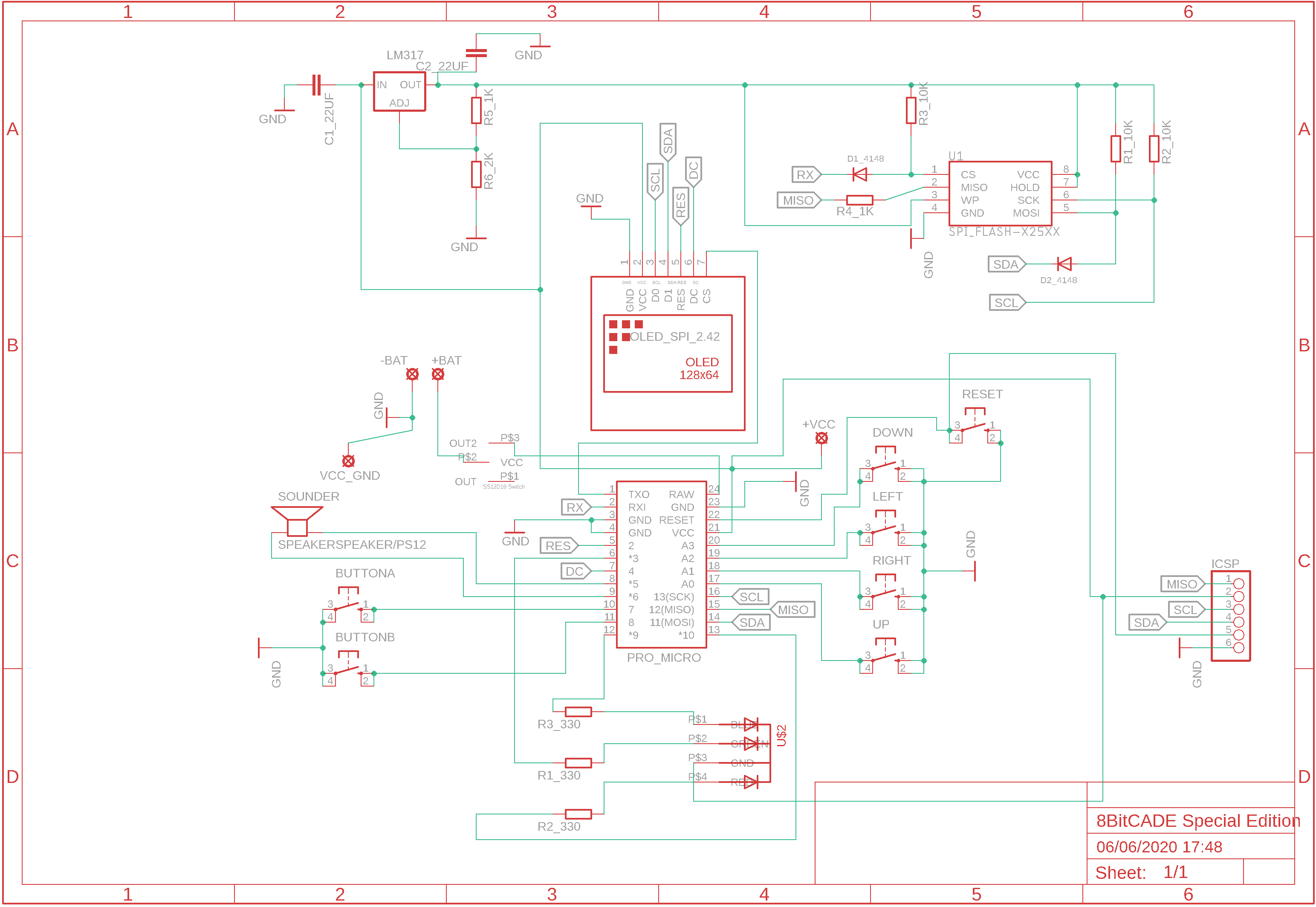
8BitCADE XL Schematic
We are open source!
8BitCADE XL Schematic

Comments
Only logged in users can leave comments