Devices & Components
Pro Micro - 5V/16MHz
Arduino LCD Screen
Tactile Switch, Top Actuated
Arduboy Compatible
8BitCADE Level UP
JLCPCB Customized PCB
Hardware & Tools
3D Printer (generic)
Software & Tools
Arduino Web Editor
Project description
Code
8BitCADE_Hardware_Test.ino
arduino
Hardware test!
1/* 8BitCADE Hardware Test written by Steve Daly 2 Tests All buttons except reset, LEDS, sound and OLED. 3 Sprite Demo using https://diyusthad.com/image2cpp Settings BMP image, Set file resolution eg 34x34, Black Background, Brightness 128, Scale to fit keeping proportions, Centre is required, 4 Output Arduino Code, Identifier player (name of sprite), Draw Mode Vertical, Generate code and copy and paste just the drawing code. 5*/ 6 7#include <Arduboy2.h> 8Arduboy2 arduboy; 9#include <ArduboyTones.h> 10ArduboyTones sound(arduboy.audio.enabled); 11#include "sprite.h" 12 13int LED_G = 3; 14int LED_R = 10; 15int LED_B = 9; 16 17char text[] = "Press Buttons!"; 18char text1[] = "Hear Sound!"; 19 20void setup() { 21 arduboy.begin(); 22 arduboy.clear(); 23 pinMode(LED_G, OUTPUT); 24 pinMode(LED_R, OUTPUT); 25 pinMode(LED_B, OUTPUT); 26 27 arduboy.audio.on(); //turns on audio 28} 29void loop() { 30 arduboy.clear(); 31 arduboy.pollButtons(); 32 33 if (arduboy.justPressed(LEFT_BUTTON)) 34 { 35 Sprites::drawOverwrite(0, 0, consoleleft, 0); // X, Y, sprite name. 36 arduboy.display(); 37 digitalWrite(LED_G, LOW); // turn the LED on (HIGH is the voltage level) 38 delay (100); 39 digitalWrite(LED_G, HIGH); // turn the LED on (HIGH is the voltage level) 40 } 41 42 if (arduboy.justPressed(RIGHT_BUTTON)) 43 { 44 Sprites::drawOverwrite(0, 0, consoleright, 0); // X, Y, sprite name. 45 arduboy.display(); 46 digitalWrite(LED_B, LOW); // turn the LED on (HIGH is the voltage level) 47 delay (100); 48 digitalWrite(LED_B, HIGH); // turn the LED on (HIGH is the voltage level) 49 } 50 51 if (arduboy.justPressed(UP_BUTTON)) 52 { 53 Sprites::drawOverwrite(0, 0, consoleup, 0); // X, Y, sprite name. 54 arduboy.display(); 55 digitalWrite(LED_R, LOW); // turn the LED on (HIGH is the voltage level) 56 delay (100); 57 digitalWrite(LED_R, HIGH); // turn the LED on (HIGH is the voltage level) 58 } 59 if (arduboy.justPressed(DOWN_BUTTON)) 60 { 61 Sprites::drawOverwrite(0, 0, consoledown, 0); // X, Y, sprite name. 62 arduboy.display(); 63 digitalWrite(LED_G, LOW); // turn the LED on (HIGH is the voltage level) 64 delay (100); 65 digitalWrite(LED_G, HIGH); // turn the LED on (HIGH is the voltage level) 66 digitalWrite(LED_R, LOW); // turn the LED on (HIGH is the voltage level) 67 delay (100); 68 digitalWrite(LED_R, HIGH); // turn the LED on (HIGH is the voltage level) 69 digitalWrite(LED_B, LOW); // turn the LED on (HIGH is the voltage level) 70 delay (100); 71 digitalWrite(LED_B, HIGH); // turn the LED on (HIGH is the voltage level) 72 } 73 if (arduboy.justPressed(A_BUTTON)) 74 { 75 Sprites::drawOverwrite(0, 0, console_a, 0); // X, Y, sprite name. 76 arduboy.display(); 77 arduboy.setCursor(30, 54); 78 arduboy.print(text1); 79 arduboy.display(); 80 delay (100); 81 82 for (int i = 0; i < 2000; i = i + 100) { 83 sound.tone(i, 50); 84 delay(50); 85 } 86 87 } 88 if (arduboy.justPressed(B_BUTTON)) 89 { 90 Sprites::drawOverwrite(0, 0, console_b, 0); // X, Y, sprite name. 91 arduboy.setCursor(30, 54); 92 arduboy.print(text1); 93 arduboy.display(); 94 delay (100); 95 96 for (int i = 2100; i > 0; i = i - 100) { 97 sound.tone(i, 50); 98 delay(50); 99 } 100 101 } 102 103 else { 104 Sprites::drawOverwrite(0, 0, console, 0); // X, Y, sprite name. 105 arduboy.setCursor(25, 54); 106 arduboy.print(text); 107 arduboy.display(); 108 delay (100); 109 { 110 } 111 } 112} 113
Downloadable files
Level UP Schematic
Scheme
Level UP Schematic
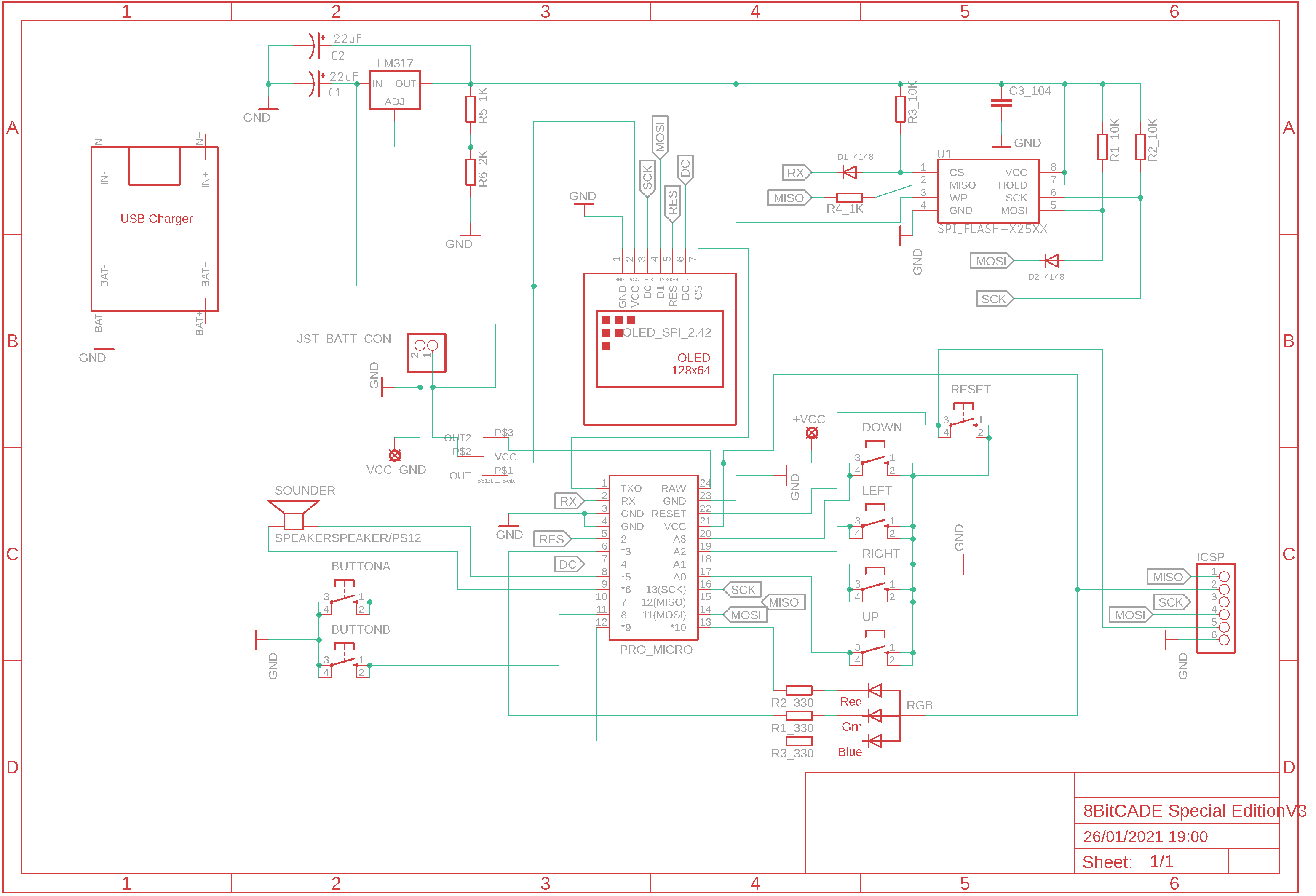
Level UP Schematic
Scheme
Level UP Schematic

Documentation
Example Case!
Print your own case!
Example Case!
Example Case!
Print your own case!
Example Case!
Comments
Only logged in users can leave comments