DHT22 Data to Google sheet Using ESP8266 NodeMCU
Here I used ESP8266 NodeMCU to send the temperature and humidity data from the DHT22 sensor to the Google Sheet over the internet.
Devices & Components
1
USB-A to Mini-USB Cable
1
Jumper wires (generic)
1
ESP8266 ESP-12E
1
DHT22 Temperature Sensor
Project description
Code
Code
c_cpp
1//----------------------------------------Include the NodeMCU ESP8266   Library
2//----------------------------------------see here: https://www.youtube.com/watch?v=8jMr94B8iN0   to add NodeMCU ESP12E ESP8266 library and board (ESP8266 Core SDK)
3#include <ESP8266WiFi.h>
4#include   <WiFiClientSecure.h>
5//----------------------------------------
6//----------------------------------------Include   the DHT Library
7#include "DHT.h"
8//----------------------------------------
9
10#define   DHTTYPE DHT22 //--> Defines the type of DHT sensor used (DHT11, DHT21, and DHT22),   in this project the sensor used is DHT11.
11
12const int DHTPin = D1; //--> The   pin used for the DHT11 sensor is Pin D1 = GPIO5
13DHT dht(DHTPin, DHTTYPE); //-->   Initialize DHT sensor, DHT dht(Pin_used, Type_of_DHT_Sensor);
14
15#define ON_Board_LED   2  //--> Defining an On Board LED, used for indicators when the process of connecting   to a wifi router
16
17//----------------------------------------SSID and Password   of your WiFi router.
18const char* ssid = "SDL AP1"; //--> Your wifi name or   SSID.
19const char* password = "Systechd33"; //--> Your wifi password.
20//----------------------------------------
21
22//----------------------------------------Host   & httpsPort
23const char* host = "script.google.com";
24const int httpsPort   = 443;
25//----------------------------------------
26
27WiFiClientSecure client;   //--> Create a WiFiClientSecure object.
28
29String GAS_ID = "AKfycbwriCAA9Gjh9V0sspRh8l_PPrfINCba-OwKsjBFoElH1B0ITnnGUqn9-1gTVRBLi3b-";   //--> spreadsheet script ID
30
31//==============================================================================   void setup
32void setup() {
33  // put your setup code here, to run once:
34   Serial.begin(115200);
35  delay(500);
36
37  dht.begin();  //--> Start reading   DHT11 sensors
38  delay(500);
39
40  WiFi.begin(ssid, password); //--> Connect   to your WiFi router
41  Serial.println("");
42
43  pinMode(ON_Board_LED,OUTPUT);   //--> On Board LED port Direction output
44  digitalWrite(ON_Board_LED, HIGH);   //--> Turn off Led On Board
45
46  //----------------------------------------Wait   for connection
47  Serial.print("Connecting");
48  while (WiFi.status() != WL_CONNECTED)   {
49    Serial.print(".");
50    //----------------------------------------Make   the On Board Flashing LED on the process of connecting to the wifi router.
51    digitalWrite(ON_Board_LED,   LOW);
52    delay(250);
53    digitalWrite(ON_Board_LED, HIGH);
54    delay(250);
55     //----------------------------------------
56  }
57  //----------------------------------------
58   digitalWrite(ON_Board_LED, HIGH); //--> Turn off the On Board LED when it is connected   to the wifi router.
59  //----------------------------------------If successfully   connected to the wifi router, the IP Address that will be visited is displayed in   the serial monitor
60  Serial.println("");
61  Serial.print("Successfully connected   to : ");
62  Serial.println(ssid);
63  Serial.print("IP address: ");
64  Serial.println(WiFi.localIP());
65   Serial.println();
66  //----------------------------------------
67
68  client.setInsecure();
69}
70//==============================================================================
71//==============================================================================   void loop
72void loop() {
73  // Reading temperature or humidity takes about 250   milliseconds!
74  // Sensor readings may also be up to 2 seconds 'old' (its a very   slow sensor)
75  int h = dht.readHumidity();
76  // Read temperature as Celsius   (the default)
77  float t = dht.readTemperature();
78
79  // Check if any reads   failed and exit early (to try again).
80  if (isnan(h) || isnan(t)) {
81    Serial.println("Failed   to read from DHT sensor !");
82    delay(500);
83    return;
84  }
85  String   Temp = "Temperature : " + String(t) + " C";
86  String Humi = "Humidity :   " + String(h) + " %";
87  Serial.println(Temp);
88  Serial.println(Humi);
89
90  sendData(t, h); //--> Calls the sendData Subroutine
91}
92//==============================================================================
93//==============================================================================   void sendData
94// Subroutine for sending data to Google Sheets
95void sendData(float   tem, int hum) {
96  Serial.println("==========");
97  Serial.print("connecting   to ");
98  Serial.println(host);
99
100  //----------------------------------------Connect   to Google host
101  if (!client.connect(host, httpsPort)) {
102    Serial.println("connection   failed");
103    return;
104  }
105  //----------------------------------------
106
107   //----------------------------------------Processing data and sending data
108   String string_temperature =  String(tem);
109  // String string_temperature =   String(tem, DEC);
110  String string_humidity =  String(hum, DEC);
111  String   url = "/macros/s/" + GAS_ID + "/exec?temperature=" + string_temperature + "&humidity="   + string_humidity;
112  Serial.print("requesting URL: ");
113  Serial.println(url);
114
115   client.print(String("GET ") + url + " HTTP/1.1\
\
116" +
117         "Host:   " + host + "\
\
118" +
119         "User-Agent: BuildFailureDetectorESP8266\
\
120"   +
121         "Connection: close\
\
122\
\
123");
124
125  Serial.println("request   sent");
126  //----------------------------------------
127
128  //----------------------------------------Checking   whether the data was sent successfully or not
129  while (client.connected()) {
130     String line = client.readStringUntil('\
131');
132    if (line == "\
") {
133       Serial.println("headers received");
134      break;
135    }
136  }
137   String line = client.readStringUntil('\
138');
139  if (line.startsWith("{\\"state\\":\\"success\\""))   {
140    Serial.println("esp8266/Arduino CI successfull!");
141  } else {
142     Serial.println("esp8266/Arduino CI has failed");
143  }
144  Serial.print("reply   was : ");
145  Serial.println(line);
146  Serial.println("closing connection");
147   Serial.println("==========");
148  Serial.println();
149  //----------------------------------------
150}
151//==============================================================================
152
Code
c_cpp
1//----------------------------------------Include the NodeMCU ESP8266  Library
2//----------------------------------------see here: https://www.youtube.com/watch?v=8jMr94B8iN0  to add NodeMCU ESP12E ESP8266 library and board (ESP8266 Core SDK)
3#include <ESP8266WiFi.h>
4#include  <WiFiClientSecure.h>
5//----------------------------------------
6//----------------------------------------Include  the DHT Library
7#include "DHT.h"
8//----------------------------------------
9
10#define  DHTTYPE DHT22 //--> Defines the type of DHT sensor used (DHT11, DHT21, and DHT22),  in this project the sensor used is DHT11.
11
12const int DHTPin = D1; //--> The  pin used for the DHT11 sensor is Pin D1 = GPIO5
13DHT dht(DHTPin, DHTTYPE); //-->  Initialize DHT sensor, DHT dht(Pin_used, Type_of_DHT_Sensor);
14
15#define ON_Board_LED  2  //--> Defining an On Board LED, used for indicators when the process of connecting  to a wifi router
16
17//----------------------------------------SSID and Password  of your WiFi router.
18const char* ssid = "SDL AP1"; //--> Your wifi name or  SSID.
19const char* password = "Systechd33"; //--> Your wifi password.
20//----------------------------------------
21
22//----------------------------------------Host  & httpsPort
23const char* host = "script.google.com";
24const int httpsPort  = 443;
25//----------------------------------------
26
27WiFiClientSecure client;  //--> Create a WiFiClientSecure object.
28
29String GAS_ID = "AKfycbwriCAA9Gjh9V0sspRh8l_PPrfINCba-OwKsjBFoElH1B0ITnnGUqn9-1gTVRBLi3b-";  //--> spreadsheet script ID
30
31//==============================================================================  void setup
32void setup() {
33  // put your setup code here, to run once:
34  Serial.begin(115200);
35  delay(500);
36
37  dht.begin();  //--> Start reading  DHT11 sensors
38  delay(500);
39
40  WiFi.begin(ssid, password); //--> Connect  to your WiFi router
41  Serial.println("");
42
43  pinMode(ON_Board_LED,OUTPUT);  //--> On Board LED port Direction output
44  digitalWrite(ON_Board_LED, HIGH);  //--> Turn off Led On Board
45
46  //----------------------------------------Wait  for connection
47  Serial.print("Connecting");
48  while (WiFi.status() != WL_CONNECTED)  {
49    Serial.print(".");
50    //----------------------------------------Make  the On Board Flashing LED on the process of connecting to the wifi router.
51    digitalWrite(ON_Board_LED,  LOW);
52    delay(250);
53    digitalWrite(ON_Board_LED, HIGH);
54    delay(250);
55    //----------------------------------------
56  }
57  //----------------------------------------
58  digitalWrite(ON_Board_LED, HIGH); //--> Turn off the On Board LED when it is connected  to the wifi router.
59  //----------------------------------------If successfully  connected to the wifi router, the IP Address that will be visited is displayed in  the serial monitor
60  Serial.println("");
61  Serial.print("Successfully connected  to : ");
62  Serial.println(ssid);
63  Serial.print("IP address: ");
64  Serial.println(WiFi.localIP());
65  Serial.println();
66  //----------------------------------------
67
68  client.setInsecure();
69}
70//==============================================================================
71//==============================================================================  void loop
72void loop() {
73  // Reading temperature or humidity takes about 250  milliseconds!
74  // Sensor readings may also be up to 2 seconds 'old' (its a very  slow sensor)
75  int h = dht.readHumidity();
76  // Read temperature as Celsius  (the default)
77  float t = dht.readTemperature();
78
79  // Check if any reads  failed and exit early (to try again).
80  if (isnan(h) || isnan(t)) {
81    Serial.println("Failed  to read from DHT sensor !");
82    delay(500);
83    return;
84  }
85  String  Temp = "Temperature : " + String(t) + " C";
86  String Humi = "Humidity :  " + String(h) + " %";
87  Serial.println(Temp);
88  Serial.println(Humi);
89
90  sendData(t, h); //--> Calls the sendData Subroutine
91}
92//==============================================================================
93//==============================================================================  void sendData
94// Subroutine for sending data to Google Sheets
95void sendData(float  tem, int hum) {
96  Serial.println("==========");
97  Serial.print("connecting  to ");
98  Serial.println(host);
99
100  //----------------------------------------Connect  to Google host
101  if (!client.connect(host, httpsPort)) {
102    Serial.println("connection  failed");
103    return;
104  }
105  //----------------------------------------
106
107  //----------------------------------------Processing data and sending data
108  String string_temperature =  String(tem);
109  // String string_temperature =  String(tem, DEC);
110  String string_humidity =  String(hum, DEC);
111  String  url = "/macros/s/" + GAS_ID + "/exec?temperature=" + string_temperature + "&humidity="  + string_humidity;
112  Serial.print("requesting URL: ");
113  Serial.println(url);
114
115  client.print(String("GET ") + url + " HTTP/1.1\
\
116" +
117         "Host:  " + host + "\
\
118" +
119         "User-Agent: BuildFailureDetectorESP8266\
\
120"  +
121         "Connection: close\
\
122\
\
123");
124
125  Serial.println("request  sent");
126  //----------------------------------------
127
128  //----------------------------------------Checking  whether the data was sent successfully or not
129  while (client.connected()) {
130    String line = client.readStringUntil('\n');
131    if (line == "\
") {
132      Serial.println("headers received");
133      break;
134    }
135  }
136  String line = client.readStringUntil('\n');
137  if (line.startsWith("{\\"state\\":\\"success\\""))  {
138    Serial.println("esp8266/Arduino CI successfull!");
139  } else {
140    Serial.println("esp8266/Arduino CI has failed");
141  }
142  Serial.print("reply  was : ");
143  Serial.println(line);
144  Serial.println("closing connection");
145  Serial.println("==========");
146  Serial.println();
147  //----------------------------------------
148}
149//==============================================================================
150
Downloadable files
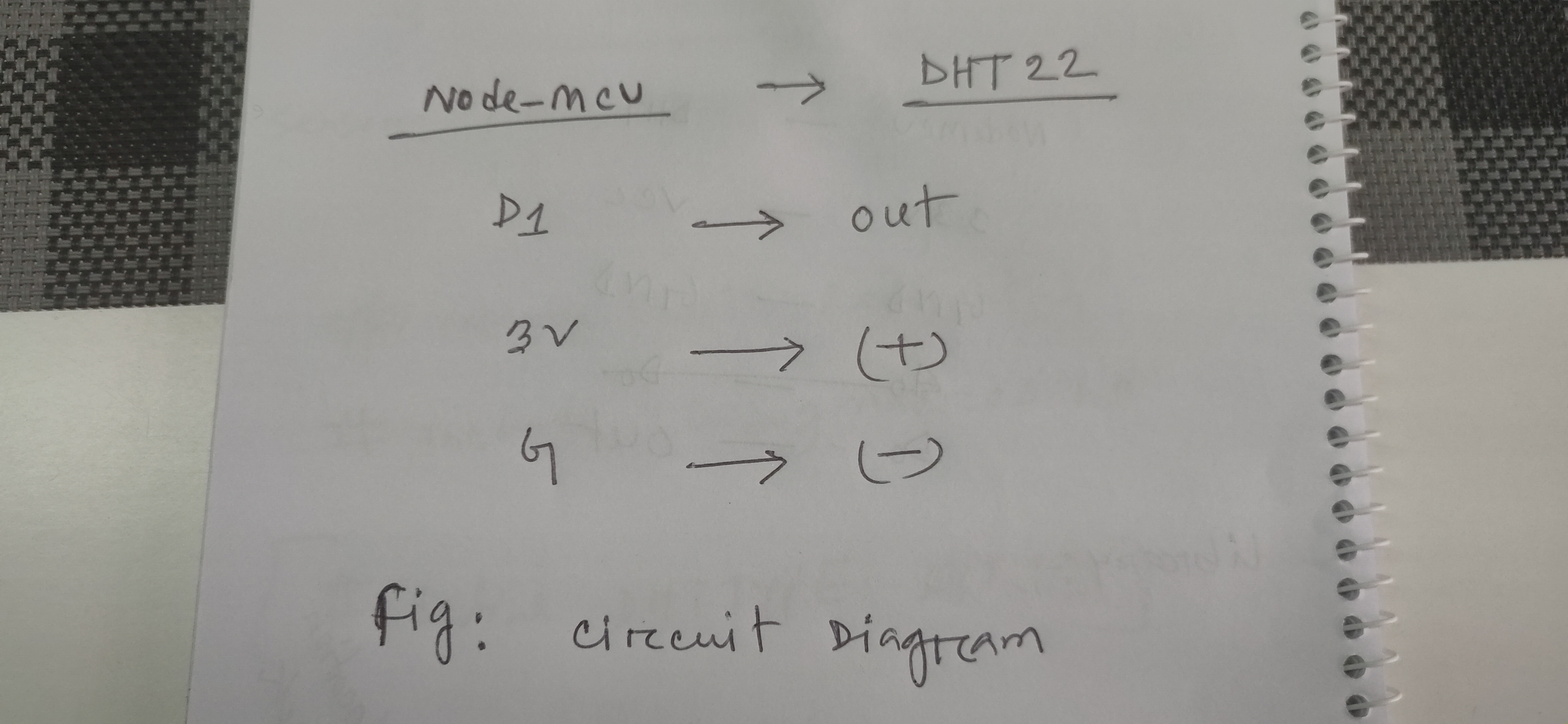
Pin Diagram
Here is the defined pin of a circuit.
Pin Diagram
Comments
Only logged in users can leave comments