Unveiling the Ambient: Cloud-Based Temperature & Light Monitoring
This project utilizes NodeMCU for cloud-based (Firebase) real-time monitoring of temperature & light using sensors.
Devices & Components

Breadboard - 830 contacts
Resistor 10k ohm
NodeMCU ESP8266
DHT11 sensor
Resistor 220 ohm
light-dependent resistor (also known as a photoresistor or LDR)
LCD TFT ILI 9341
Red LEDs
Software & Tools

Arduino IDE
Firebase
Project description
Code
Code Part 1: Gathering data and uploading it to the cloud
cpp
Cloud-Based Temperature & Light Monitoring
1#include "DHT.h"       // Include the DHT library for interfacing with the sensor
2#include <ESP8266WiFi.h> //Include ESP8266
3#include <ESP8266Firebase.h>
4
5// Wi-Fi credentials
6const char* ssid = "Your-WiFi-SSID"; //Replace with your WiFi SSID
7const char* password = "Your-WiFi-Passwor"; //Replace with your WiFi password
8
9
10//Red LED: turns on when not connected to internet
11int RedLED = D1;
12
13 // Firebase project reference URL
14#define REFERENCE_URL "Your-Firebase-Database-URL"  //Replace with your Firebase Database URL
15// Create a Firebase object with the specified reference URL
16Firebase firebase(REFERENCE_URL);
17
18#define Type DHT11     // Define the sensor type as DHT11
19int sensePin = D2;      // Define the sensor's data pin as digital pin 2
20DHT HT(sensePin, Type); // Create a DHT object named HT for the sensor
21// Variables to store humidity and temperature readings
22float humidity;
23float tempC;
24float tempF;
25int setTime = 500;     // Initial delay time in milliseconds
26int dt = 1000;         // Delay between sensor readings in milliseconds
27
28//Pin A0 of the NodeMCU reads the voltage which depends on the light.
29//Dimmer light to photoresistor will result in lessor voltage (high resistance) and vice versa
30int ReadPin = A0;
31//Variable to store the voltage reading by analog pin
32int Volts = 0;
33
34void setup() {
35  // Setup code that runs once when the Arduino starts
36  Serial.begin(9600);  // Initialize serial communication at 9600 baud rate
37  HT.begin();          // Initialize the DHT sensor
38  delay(setTime);      // Initial delay to let the sensor stabilize
39  //Analog Pin (defined as ReadPin in our case) is the the input pin
40  pinMode(ReadPin, INPUT);
41
42  //Red LED pin as OUTPUT pin
43  pinMode(RedLED, OUTPUT);
44  //turn on red LED until connected to internet
45  digitalWrite(RedLED, HIGH);
46
47  // Connect to Wi-Fi
48  WiFi.begin(ssid, password);
49  while (WiFi.status() != WL_CONNECTED) {
50    delay(1000);
51    Serial.println("Connecting to WiFi...");
52  }
53  Serial.println("Connected to WiFi");
54  //turn off Red LED
55   digitalWrite(RedLED, LOW);
56}
57
58void loop() {
59  // Main loop that runs repeatedly
60  humidity = HT.readHumidity();    // Read the humidity from the sensor
61  tempC = HT.readTemperature();    // Read temperature in Celsius
62  // Getting voltage reading using analogRead method.
63  Volts = analogRead(ReadPin);
64
65    // Check if Wi-Fi is connected
66  if (WiFi.status() == WL_CONNECTED) {
67    // Upload data to firebae
68    firebase.setFloat("humidity", humidity);
69    Serial.println("Humidity data uploaded");
70    firebase.setFloat("temperature", tempC);
71    Serial.println("Temperature data uploaded");
72    firebase.setFloat("light", Volts);
73    Serial.println("Light data uploaded");
74    delay(dt);
75    //keep the Red LED off when connected to internet
76   digitalWrite(RedLED, LOW);
77
78  } else {
79    // If Wi-Fi is not connected, attempt to reconnect
80    //turn on Red LED until connected back to internet
81    digitalWrite(RedLED, HIGH);
82    Serial.println("WiFi not connected. Reconnecting...");
83    WiFi.reconnect();
84    delay(5000); // 5 seconds delay
85  }
86}
Code Part 2: Retrieve data from the cloud and display it on a TFT
cpp
Cloud-Based Temperature & Light Monitoring
1#include <ESP8266WiFi.h> //Include ESP8266
2#include <ESP8266Firebase.h> //Include ESP8266Firebase for Firebase Realtime Database Connection.
3
4#include <SPI.h>
5#include <Adafruit_GFX.h>
6#include <Adafruit_ILI9341.h> // This assumes you are using the ILI9341-based TFT display
7
8//Adding Custom Fonts for TFT Display
9#include <Fonts/FreeSansBold12pt7b.h>
10#include <Fonts/FreeSans9pt7b.h>
11
12
13
14// Define the pin connections for the TFT display
15#define TFT_CS D8      // Chip select pin
16#define TFT_RST D7      // Reset pin
17#define TFT_DC D6      // Data/Command pin
18#define TFT_MOSI D5    // SPI MOSI (Master Out Slave In) pin
19#define TFT_SCK D4     // SPI SCK (Clock) pin
20#define TFT_MISO D3    // SPI MISO (Master In Slave Out) pin
21
22
23// Create an instance of the Adafruit_ILI9341 class with specified pin connections
24Adafruit_ILI9341 tft = Adafruit_ILI9341(TFT_CS, TFT_DC, TFT_MOSI, TFT_SCK, TFT_RST, TFT_MISO);
25
26// Wi-Fi credentials
27const char* ssid = "Your-WiFi-SSID"; //Replace with your WiFi SSID
28const char* password = "Your-WiFi-Passwor"; //Replace with your WiFi password
29
30//Delay before retrieving data again
31int dt = 1000;
32
33
34 // Firebase project reference URL
35#define REFERENCE_URL "Your-Firebase-Database-URL"  //Replace with your Firebase Database URL
36// Create a Firebase object with the specified reference URL
37Firebase firebase(REFERENCE_URL);
38
39//RGB value for the background color of the TFT screen
40uint16_t rgbColor = tft.color565(155, 0, 0);
41//RGB values for temperature, humidity, and light text
42uint16_t rgbColor2 = tft.color565(192, 150, 73);
43uint16_t rgbColor3 = tft.color565(0, 0, 0);
44
45
46
47void setup() {
48  Serial.begin(9600);
49   // Initialize the TFT display
50  tft.begin();
51  // Set display rotation (1 for 90 degrees clockwise)
52  tft.setRotation(1);
53    // Set text size
54  tft.setTextSize(1);
55  //set font
56  tft.setFont(&FreeSansBold12pt7b);
57  //set background color
58  tft.fillScreen(rgbColor);
59
60
61
62  //Display texts to TFT
63  tft.setTextColor(rgbColor3);
64  typewriter(30, 50, "Temp.");
65  typewriter(30, 100, "Hum.");
66  typewriter(30, 150, "Li.");
67
68
69  //change TFT font
70  tft.setFont(&FreeSans9pt7b);
71
72  // Connect to Wi-Fi
73  WiFi.begin(ssid, password);
74
75  while (WiFi.status() != WL_CONNECTED) {
76    delay(1000);
77    //Displaying 'Connecting to WiFi' on TFT
78    tft.setTextColor(ILI9341_WHITE);
79    tft.setCursor(30, 200);
80    tft.print("C o n n e c t i n g   t o   W i F i . . . ");
81    Serial.println("Connecting to WiFi...");
82  }
83  //Connected to WiFi
84  // Clear the previous value i.e. clear the text 'Connecting to WiFi'
85  tft.fillRect(30, 180, 300, 30, rgbColor);
86  tft.setCursor(30, 200);
87  //Displaying 'Connected to WiFi' on TFT
88  tft.print("C o n n e c t e d   t o   W i F i "); //updating WiFi Status on TFT
89  Serial.println("Connected to WiFi");
90  //set back regular font
91  tft.setFont(&FreeSansBold12pt7b);
92
93}
94
95void loop() {
96  // Check if Wi-Fi is connected
97  if (WiFi.status() == WL_CONNECTED) {
98    //WiFi is connected
99    // Fetch temperature from Firebase
100    float tempC = firebase.getFloat("temperature");
101    Serial.println(tempC);
102    //function to clear previous temperature value from TFT and type the new value
103    updateTemp(tempC);
104
105    // Fetch humidity from Firebase
106    float humidity = firebase.getFloat("humidity");
107    Serial.println(humidity);
108    //function to clear previous humidity value from TFT and type the new value
109    updateHumidity(humidity);
110
111    // Fetch light from Firebase
112    float light = firebase.getFloat("light");
113    Serial.println(light);
114    //function to clear previous light value from TFT and type the new value
115    updateLight(light);
116
117    //Delay before fetching again
118    delay(dt);
119
120  } else {
121    //Wi-Fi is not connected, attempt to reconnect
122    //Change TFT Font for WiFi Status display
123    tft.setFont(&FreeSans9pt7b);
124    // Clear the previous value i.e. clear the text 'Connected to WiFi'.
125    tft.fillRect(30, 180, 300, 30, rgbColor);
126    tft.setTextColor(ILI9341_WHITE);
127    tft.setCursor(30, 200);
128    tft.print("R e c o n n e c t i n g . . .");
129    Serial.println("WiFi not connected. Reconnecting...");
130    WiFi.reconnect();
131    delay(5000); // 5 seconds delay
132    if (WiFi.status() == WL_CONNECTED) {
133      // Clear the previous value i.e. clear the text 'Reconnecting'
134     tft.fillRect(30, 180, 300, 30, rgbColor);
135     tft.setCursor(30, 200);
136     tft.print("C o n n e c t e d   t o   W i F i "); //updating WiFi Status on TFT
137     //set back regular font
138     tft.setFont(&FreeSansBold12pt7b);
139    }
140  }
141}
142
143void updateTemp(float tempC) {
144  // Clear the previous values
145  tft.fillRect(150, 30, 240, 30, rgbColor);
146
147  delay(1000);
148
149  // Convert to string
150  String tempStr = String(tempC, 2) + " C";
151
152
153  tft.setTextColor(rgbColor2);
154  typewriter(150, 50, tempStr);
155}
156
157
158void updateHumidity(float humidity) {
159  // Clear the previous values
160  tft.fillRect(150, 80, 240, 30, rgbColor);
161
162  delay(1000);
163
164  // Convert to string
165  String humidityStr = String(humidity, 2) + " %";
166
167  tft.setTextColor(rgbColor2);
168  typewriter(150, 100, humidityStr);
169
170}
171
172
173void updateLight(float light) {
174  // Clear the previous values
175  tft.fillRect(150, 130, 240, 30, rgbColor);
176
177  delay(1000);
178
179  //convert light to percentage
180  light = (light / 1023.0) * 100.0;
181  // Convert to string
182  String lightStr = String(light, 2) + " %";
183
184  tft.setTextColor(rgbColor2);
185  typewriter(150, 150, lightStr);
186}
187
188
189
190void typewriter(int x, int y, String text) {
191  tft.setCursor(x, y);
192  for (int i = 0; i < text.length(); i++) {
193    tft.print(text[i]);
194    delay(50);
195  }
196}
Downloadable files
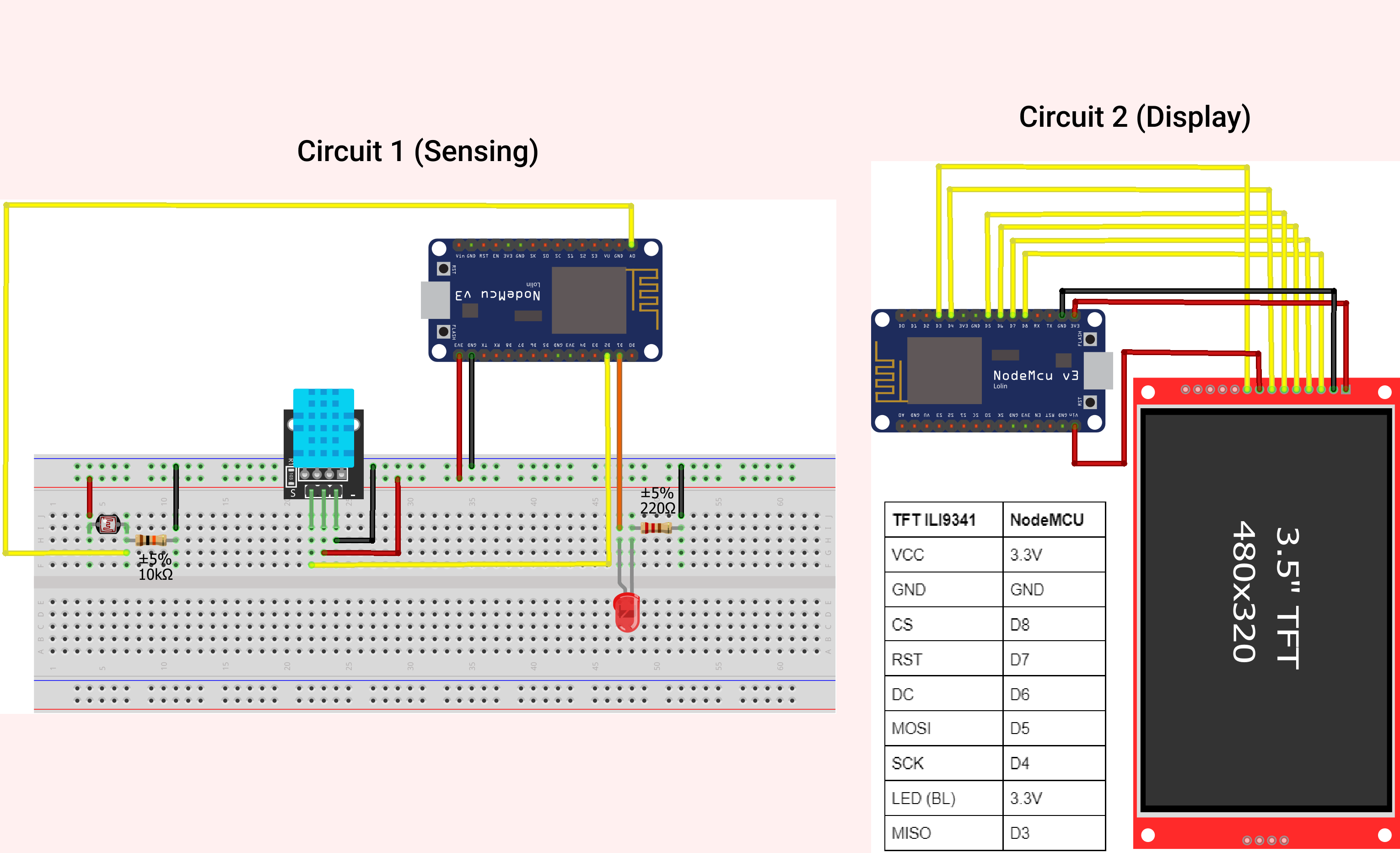
Cloud-based Temperature and Light Monitoring - Circuit
Sense environment and display on TFT (Cloud-based)
Circuit.png
Documentation
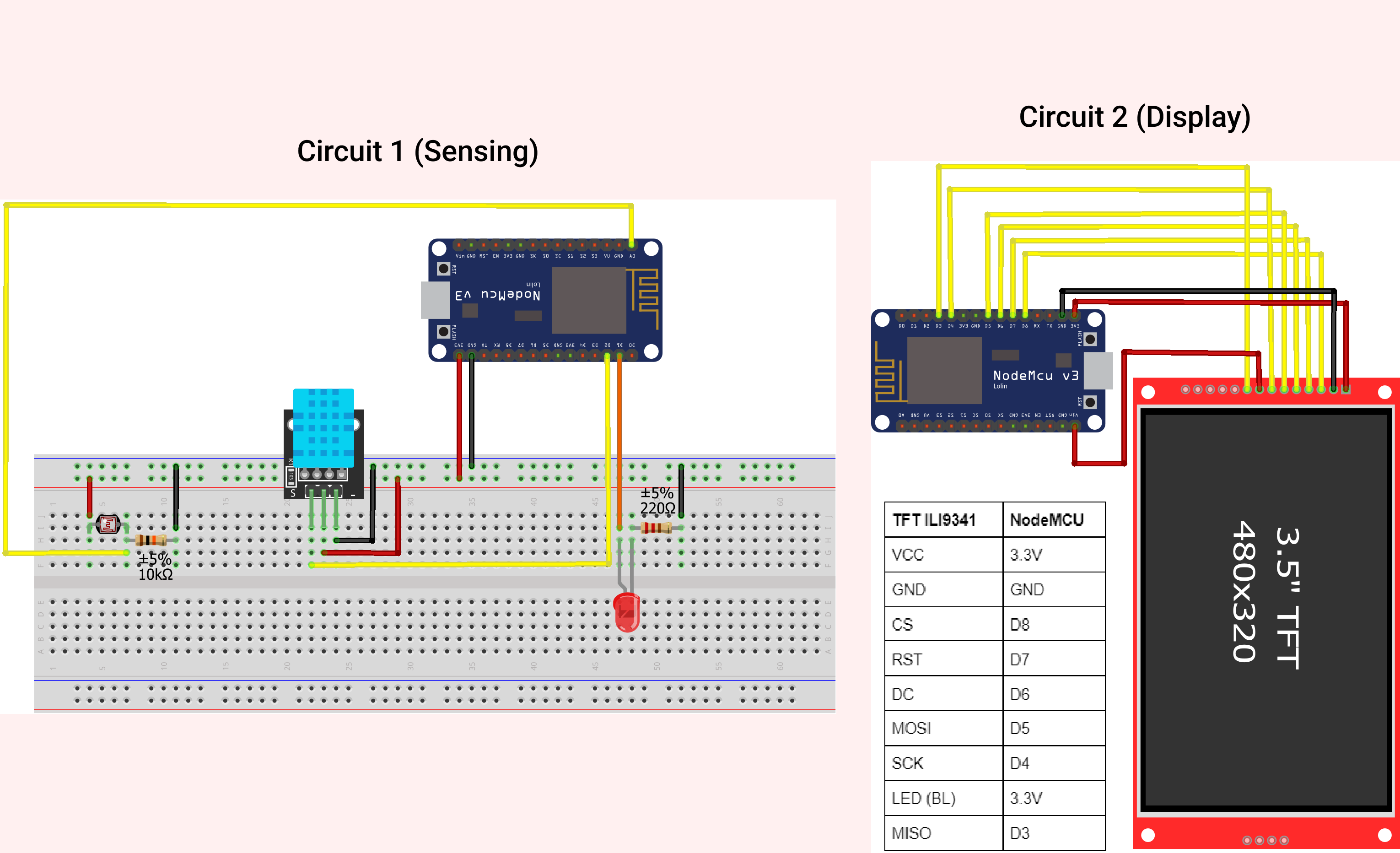
Cloud-based Temperature and Light Monitoring - Circuit
Sense environment and display on TFT (Cloud-based)
Circuit.png
Comments
Only logged in users can leave comments