Devices & Components
Arduino Uno Rev3
16x2 LCD display with I²C interface
\tPush Button
LED (generic)
Resistor 100 ohm
Breadboard (generic)
Jumper wires (generic)
Male/Female Jumper Wires
Project description
Code
Lcdbuttons
arduino
You need the LiquidCrystal_I2C to be able to run it. Download it from here https://github.com/fdebrabander/Arduino-LiquidCrystal-I2C-library
1//Include the LCD Library. 2#include <Wire.h> 3#include <LiquidCrystal_I2C.h> 4 5LiquidCrystal_I2C lcd(0x27, 16, 2); 6 7const int buttonPin1 = 2; // Charachter change button 8const int buttonPin2 = 3; // Move button 9const int buttonPin3 = 4; // Reset screen button 10const int ledPin1 = 13; // Charachter change LED pin 11const int ledPin2 = 12; // Move LED pin 12const int ledPin3 = 11; // Reset LED pin 13const char chars[] = {'A','B','C','D','E','F','G','H','I','J','K','L','M','O','P','Q','R','S','U','V','W','X','Y','Z','.',',','1','2','3','4','5','6','7','8','9','0','-','*','@'};//add any additional characters 14 15int charindex = 0; 16int buttonState1 = 0; 17int buttonState2 = 0; 18int buttonState3 = 0; 19int charsSize = 0; 20int cx = 0; 21int cy = 0; 22 23 24 25void setup() { 26 //init LCD 27 lcd.begin(); 28 lcd.clear(); 29 lcd.setCursor(0, 0); 30 lcd.blink(); 31 //Charachters array size 32 charsSize = sizeof(chars); 33 //LED init 34 pinMode(ledPin1, OUTPUT); 35 pinMode(ledPin2, OUTPUT); 36 pinMode(ledPin3, OUTPUT); 37 // initialize the pushbutton pin as an input: 38 pinMode(buttonPin1, INPUT); 39 pinMode(buttonPin2, INPUT); 40 pinMode(buttonPin3, INPUT); 41 42} 43 44void loop() { 45 buttonState1 = digitalRead(buttonPin1); 46 buttonState2 = digitalRead(buttonPin2); 47 buttonState3 = digitalRead(buttonPin3); 48 // 49 if (buttonState1 == HIGH) { 50 if(charindex == charsSize){ 51 charindex = 0; 52 } 53 // change char and turn led on: 54 digitalWrite(ledPin1, HIGH); 55 lcd.print(chars[charindex]); 56 lcd.setCursor(cx, cy); 57 charindex++; 58 } else { 59 digitalWrite(ledPin1, LOW); 60 } 61 //Move to next pixel 62 if (buttonState2 == HIGH) { 63 digitalWrite(ledPin2, HIGH); 64 charindex = 0; 65 cx++; 66 if(cx == 16){ 67 cx = 0; 68 cy++; 69 } 70 if(cy == 2){ 71 cy = 0; 72 } 73 lcd.setCursor(cx, cy); 74 }else { 75 digitalWrite(ledPin2, LOW); 76 } 77 //reset 78 if (buttonState3 == HIGH) { 79 digitalWrite(ledPin3, HIGH); 80 charindex = 0; 81 cx = 0; 82 cy = 0; 83 lcd.setCursor(cx, cy); 84 lcd.clear(); 85 }else { 86 digitalWrite(ledPin3, LOW); 87 } 88 delay(170); 89} 90
Lcdbuttons
arduino
You need the LiquidCrystal_I2C to be able to run it. Download it from here https://github.com/fdebrabander/Arduino-LiquidCrystal-I2C-library
1//Include the LCD Library. 2#include <Wire.h> 3#include <LiquidCrystal_I2C.h> 4 5LiquidCrystal_I2C lcd(0x27, 16, 2); 6 7const int buttonPin1 = 2; // Charachter change button 8const int buttonPin2 = 3; // Move button 9const int buttonPin3 = 4; // Reset screen button 10const int ledPin1 = 13; // Charachter change LED pin 11const int ledPin2 = 12; // Move LED pin 12const int ledPin3 = 11; // Reset LED pin 13const char chars[] = {'A','B','C','D','E','F','G','H','I','J','K','L','M','O','P','Q','R','S','U','V','W','X','Y','Z','.',',','1','2','3','4','5','6','7','8','9','0','-','*','@'};//add any additional characters 14 15int charindex = 0; 16int buttonState1 = 0; 17int buttonState2 = 0; 18int buttonState3 = 0; 19int charsSize = 0; 20int cx = 0; 21int cy = 0; 22 23 24 25void setup() { 26 //init LCD 27 lcd.begin(); 28 lcd.clear(); 29 lcd.setCursor(0, 0); 30 lcd.blink(); 31 //Charachters array size 32 charsSize = sizeof(chars); 33 //LED init 34 pinMode(ledPin1, OUTPUT); 35 pinMode(ledPin2, OUTPUT); 36 pinMode(ledPin3, OUTPUT); 37 // initialize the pushbutton pin as an input: 38 pinMode(buttonPin1, INPUT); 39 pinMode(buttonPin2, INPUT); 40 pinMode(buttonPin3, INPUT); 41 42} 43 44void loop() { 45 buttonState1 = digitalRead(buttonPin1); 46 buttonState2 = digitalRead(buttonPin2); 47 buttonState3 = digitalRead(buttonPin3); 48 // 49 if (buttonState1 == HIGH) { 50 if(charindex == charsSize){ 51 charindex = 0; 52 } 53 // change char and turn led on: 54 digitalWrite(ledPin1, HIGH); 55 lcd.print(chars[charindex]); 56 lcd.setCursor(cx, cy); 57 charindex++; 58 } else { 59 digitalWrite(ledPin1, LOW); 60 } 61 //Move to next pixel 62 if (buttonState2 == HIGH) { 63 digitalWrite(ledPin2, HIGH); 64 charindex = 0; 65 cx++; 66 if(cx == 16){ 67 cx = 0; 68 cy++; 69 } 70 if(cy == 2){ 71 cy = 0; 72 } 73 lcd.setCursor(cx, cy); 74 }else { 75 digitalWrite(ledPin2, LOW); 76 } 77 //reset 78 if (buttonState3 == HIGH) { 79 digitalWrite(ledPin3, HIGH); 80 charindex = 0; 81 cx = 0; 82 cy = 0; 83 lcd.setCursor(cx, cy); 84 lcd.clear(); 85 }else { 86 digitalWrite(ledPin3, LOW); 87 } 88 delay(170); 89} 90
Downloadable files
type letters to I2C screen with push buttons
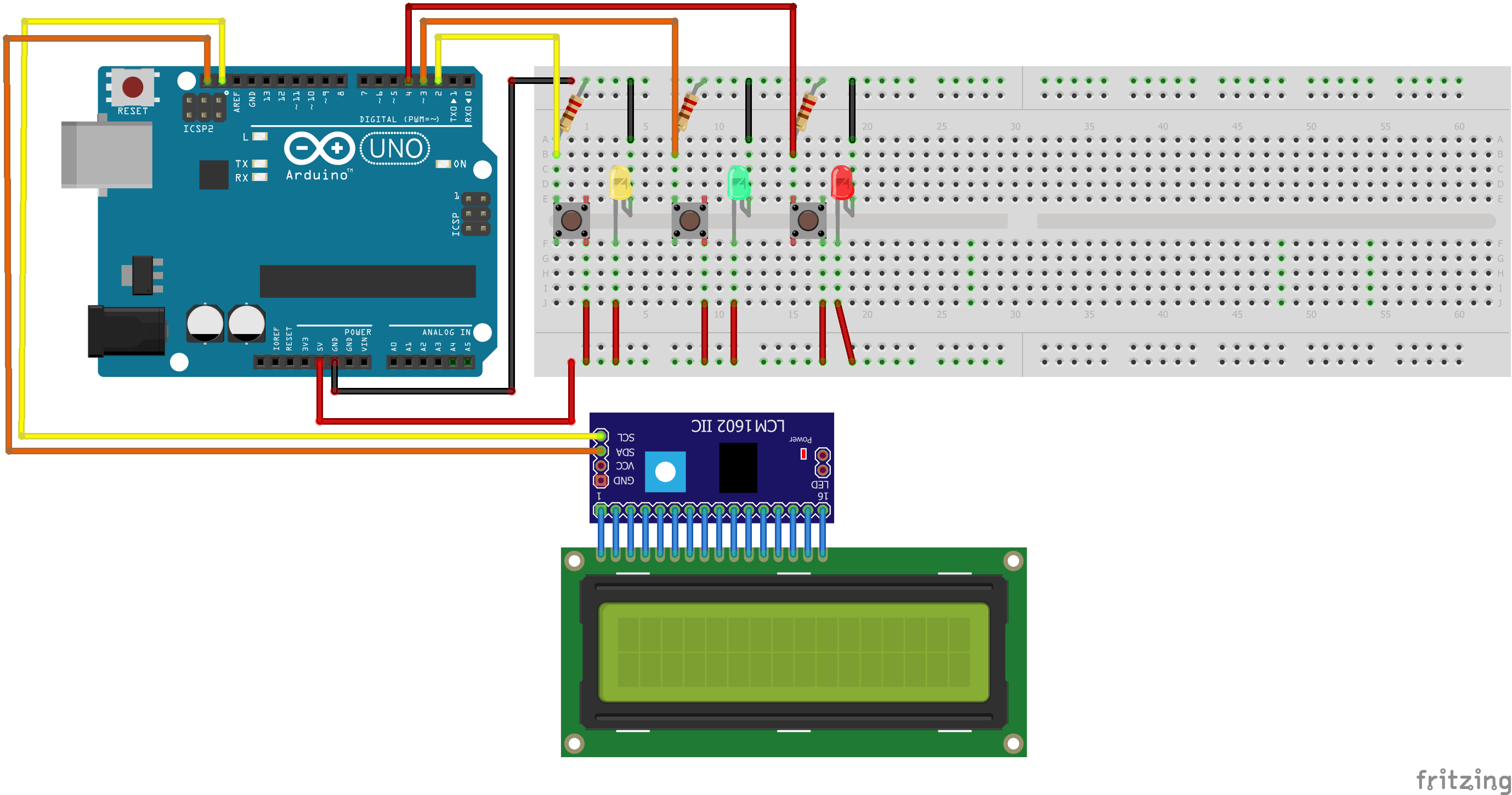
type letters to I2C screen with push buttons

type letters to I2C screen with push buttons
Comments
Only logged in users can leave comments