Devices & Components
Arduino Mega 2560 Rev3
AMT102-V 8192 CPR Rotary Encoder
Displaytech 204A - 4 x 20 Line Blue & White LCD Display
Keypad, 3x4 Plastic - MCAK304NBWB
AD-13 Advanced Solderless Breadboard
Adafruit Mini 8x8 LED Matrix w/I2C Backpack - Ultra Bright White
ODrive Brushless DC Dual Shaft Motor - D5065 270KV
ODrive Brushless DC Motor Controller
Hardware & Tools
Axminter Sieg X1 Milling Machine
Software & Tools
Fusion 360
Alibre Design Professional
Project description
Code
Simple Arduino Joypad test Sketch
c_cpp
Please take a look at my video here for in-depth details: https://youtu.be/yI8ZIQ0cC4I
1/* 2Neil Devonshire - Dev255 3YouTube Dev255 4www.dev255.co.uk 5 6Joypad test sketch to ensure all the contols work across all range of motion 7comments added to help describe the funcion of each statement (if requied) 8 9 10 Copyright (C) <2020> <Neil Devonshire> 11 12 This program is free software: you can redistribute it and/or modify 13 it under the terms of the GNU General Public License as published by 14 the Free Software Foundation, either version 3 of the License, or 15 (at your option) any later version. 16 17 This program is distributed in the hope that it will be useful, 18 but WITHOUT ANY WARRANTY; without even the implied warranty of 19 MERCHANTABILITY or FITNESS FOR A PARTICULAR PURPOSE. See the 20 GNU General Public License for more details. 21 22 You should have received a copy of the GNU General Public License 23 along with this program. If not, see <https://www.gnu.org/licenses/>. 24 25*/ 26 27int topPotPin = A0; // The Joypads top variable resistor (Potentiometer(Pot for short)) is connected to Arduino pin A0 28int topPotVal = 0; // This sets the value asociated with the name 'topPotVal' to 0 29int xAxisPin = A1; // The Joypads X-Axis Pot is connected to Arduino pin A1 30int xAxisVal = 0; 31int yAxisPin = A2; 32int yAxisVal = 0; 33int zAxisPin = A3; 34int zAxisVal = 0; 35int topSwtchPin = 46; // The Joypads top switch is connected to Arduino pin 46 36int topSwtchVal = 0; 37int redLedPin = 50; // The Joypads Red LED is connected to Arduino pin 50 38int yellowLedPin = 48; // The Joypads Red LED is connected to Arduino pin 48 39 40void setup(void) { // Setup will only run once, you don't have to include 'void' in the (), I just include it for completeness 41 pinMode(topSwtchPin, INPUT); // Sets 'topSwitchPin' (connection 46 on Arduino board) to a Digital Input 42 pinMode(topSwtchPin, INPUT_PULLUP); // Turns on the pull-up resistor for pin 46 (keeps the pin near Vcc(5V)when nothing is connected or switch is off) 43 pinMode(redLedPin, OUTPUT); // Sets 'redLedPin' (connection 50 on Arduino board) to a Digital Output 44 pinMode(yellowLedPin, OUTPUT); // Sets 'yellowLedPin' (connection 50 on Arduino board) to a Digital Output 45 46 Serial.begin(115200); // Starts serial communication at 115200bps (ensure serial monitor is at 115200 or ou will get garbled characters) 47 while (!Serial) ; // Waits until the serial port is communicating (while !(not) Serial) 48} 49 50void loop(void){ // Runs continually in a loop, you don't have to include 'void' in the (), I just include it for completeness 51 52 topPotVal = analogRead(topPotPin); // Take the current position of the top potentiometer and stick it in 'topPotVal' 53 xAxisVal = analogRead(xAxisPin); // Take the current position of the x-Axis pot and stick it in 'xAxisVal' 54 yAxisVal = analogRead(yAxisPin); // Take the current position of the y-Axis pot and stick it in 'yAxisVal' 55 zAxisVal = analogRead(zAxisPin); // Take the current position of the z-Axis pot and stick it in 'zAxisVal' 56 topSwtchVal = digitalRead(topSwtchPin); // Take the On/Off state of the top switch and stick it in 'topSwtchVal' 57 58 Serial.print("X-Val = "); // Send "X-Val = " to display on the serial monitor 59 Serial.print(xAxisVal); // Send the value of 'xAxisVal' to display on the serial monitor (i.e. 1024 if 5v on pin A1) 60 Serial.print(" Y-Val = "); // Send "Y-Val = " to display on the serial monitor 61 Serial.print(yAxisVal); // Send the value of 'yAxisVal' to display on the serial monitor (i.e. 512 if 2.5v on pin A2) 62 Serial.print(" Z-Val = "); // Send "Z-Val = " to display on the serial monitor 63 Serial.print(zAxisVal); // Send the value of 'zAxisVal' to display on the serial monitor (i.e. 256 if 1.75v on pin A3) 64 Serial.print(" Top Val = "); // Send "Top Val = " to display on the serial monitor 65 Serial.println(topPotVal); // Send the value of 'topPotVal' to display on the serial monitor (i.e. 0 if 0v on pin A0) 66 67 if (topSwtchVal == 0){ // If the 'topSwtchVal' value is a 0 (notice == and not =), then flash the Joypads LEDs 68 69 digitalWrite(yellowLedPin, HIGH); // Turn the Yellow LED on (pin 48 goes High or 5v). Note: a series resistor of around 470ohms should be used with standard LED 70 digitalWrite(redLedPin, LOW); // Turn the Red LED off (pin 50 goes Low or 0v). 71 delay(500); // Pause the program for 0.5 seconds (500ms) 72 digitalWrite(redLedPin, HIGH); // Turn the Red LED on (pin 50 goes High or 5v). 73 delay(500); // Pause the program for 0.5 seconds (500ms) 74 digitalWrite(yellowLedPin, LOW); // Turn the Yellow LED off (pin 48 goes Low or 0v). 75 digitalWrite(redLedPin, LOW); // Turn the Red LED off (pin 50 goes Low or 0v). 76 delay(500); // Pause the program for 0.5 seconds (500ms) 77 digitalWrite(yellowLedPin, HIGH); // Turn the Yellow LED on (pin 48 goes High or 5v). 78 digitalWrite(redLedPin, HIGH); // Turn the Red LED on (pin 50 goes High or 5v). 79 delay(500); // Pause the program for 0.5 seconds (500ms) 80 81 } // End of IF block of code 82 83} // End of Loop (this is where it returns to the begining of the Loop to repeat)
Downloadable files
Simple Cirduit Diagram
This diagram shows the joypad and Arduino Mega 2560 connections in their simplest form.
Simple Cirduit Diagram
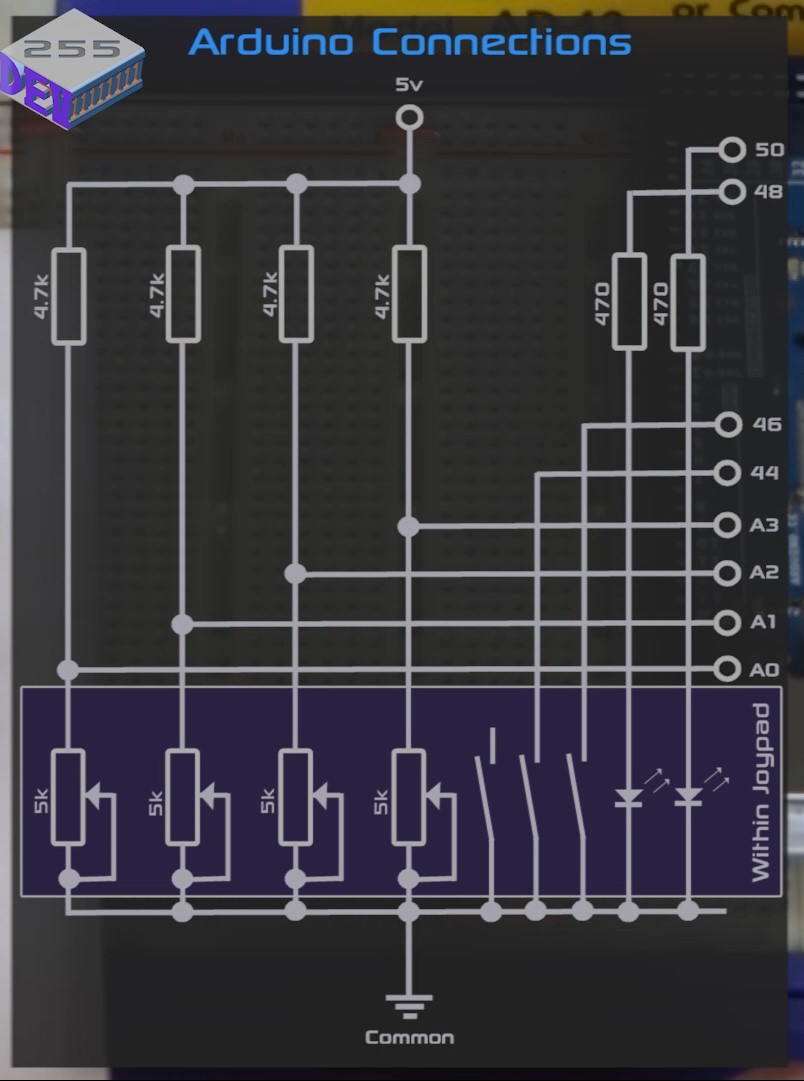
Simple Cirduit Diagram
This diagram shows the joypad and Arduino Mega 2560 connections in their simplest form.
Simple Cirduit Diagram

Comments
Only logged in users can leave comments