Devices & Components
Arduino Uno Rev3
Ethernet Shield
Ethernet Cable, 1.8 m
Software & Tools
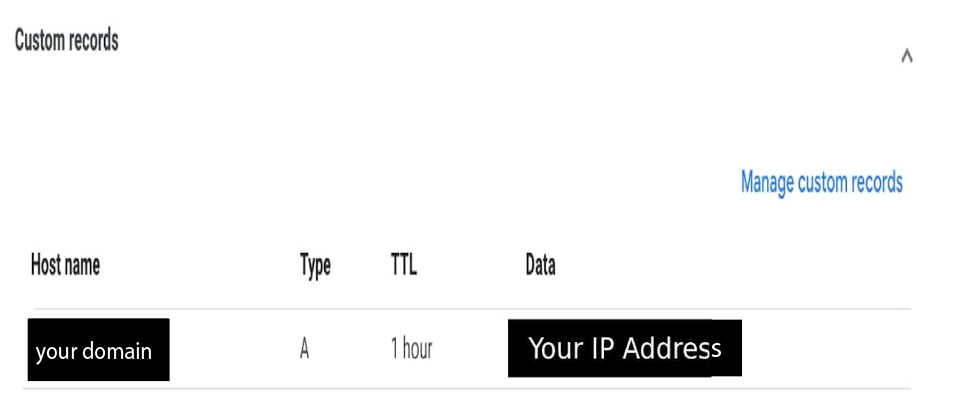
Google Domains
Project description
Code
Main Code
cpp
First, Install the SPI and Ethernet libraries.
1#include <SPI.h> 2#include <Ethernet.h> 3 4// MAC address for shield 5byte mac[] = { 0xDE, 0xAD, 0xBE, 0xEF, 0xFE, 0xED}; 6EthernetServer server(80); // Using port 80 7int led = 7; // LED attached to pin 7 8void setup() { 9 pinMode(led, OUTPUT); // Led set as an output 10 Ethernet.begin(mac); // Start the Ethernet shield 11 server.begin(); 12 Serial.begin(9600); // Start serial communication 13 Serial.println("Server address:"); // Print server address 14 // (Arduino shield) 15 Serial.println(Ethernet.localIP()); 16} 17void loop() { 18 EthernetClient client = server.available(); 19 if (client) { 20 boolean currentLineIsBlank = true; 21 String buffer = ""; 22 while (client.connected()) { 23 if (client.available()) { 24 char c = client.read(); // Read from the Ethernet shield 25 buffer += c; // Add character to string buffer 26 // Client sent request, now waiting for response 27 if (c == '\ 28' && currentLineIsBlank) { 29 client.println("HTTP/1.1 200 OK"); // HTTP response 30 client.println("Content-Type: text/html"); 31 client.println(); // HTML code 32 client.print("<center><br><h1>Internet Controlled Led </h1><br><br><br><FORM>"); 33 client.print("<P> <INPUT type=\\"submit\\" name=\\"status\\" value=\\"ON\\">"); 34 client.print("<P> <INPUT type=\\"submit\\" name=\\"status\\" value=\\"OFF\\">"); 35 client.print("</FORM></center>"); 36 break; 37 } 38 if (c == '\ 39') { 40 currentLineIsBlank = true; 41 buffer = ""; 42 } 43 else if (c == '\ 44') { // Command from webpage 45 // Did the on button get pressed 46 if (buffer.indexOf("GET /?status=ON") >= 0) 47 digitalWrite(led, HIGH); 48 // Did the off button get pressed 49 if (buffer.indexOf("GET /?status=OFF") >= 0) 50 digitalWrite(led, LOW); 51 } 52 else { 53 currentLineIsBlank = false; 54 } 55 } 56 } 57 client.stop(); // End server 58 } 59}
Downloadable files
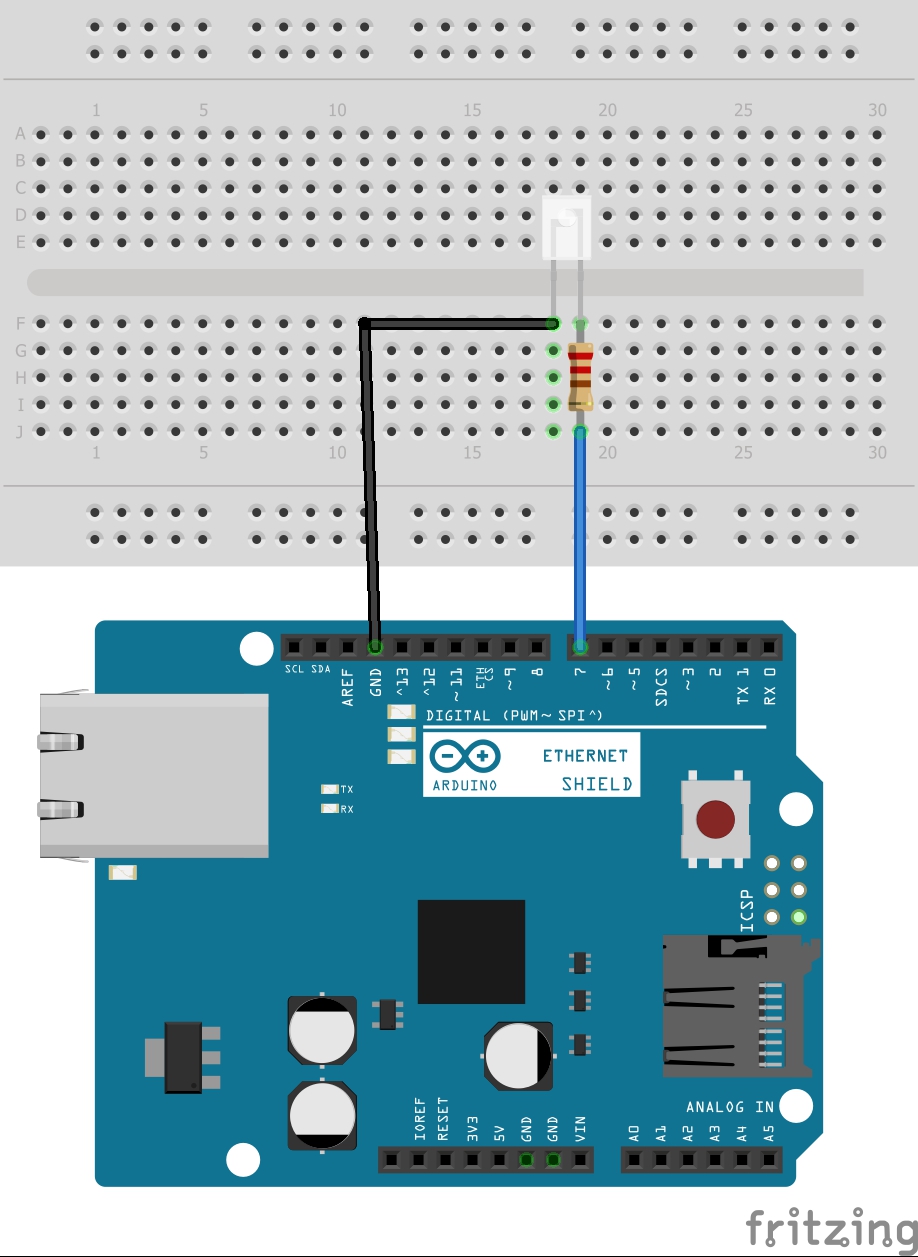
Schematic for step 1.
schematic.jpeg
Documentation
Image for step 5.
Screen Shot 2023-01-19 at 7.49.29 am.png

Image for step 6.
Screen Shot 2023-01-19 at 7.24.48 am.png
Comments
Only logged in users can leave comments