Developing a device for Heart Rate using pulse sensor
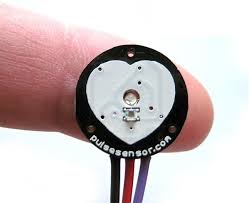
Pulse Sensor with Arduino and LCD display is a project that take the reading of heart beat and also monitor it.
Devices & Components
1
Arduino Uno Rev3
1
MAX30102 High-Sensitivity Pulse Oximeter and Heart-Rate Sensor for Wearable Health
1
Breadboard (generic)
Hardware & Tools
1
10 Pc. Jumper Wire Kit, 5 cm Long
Software & Tools

Arduino IDE
Project description
Code
the code for the project
arduino
1
2/*  Getting_BPM_to_Monitor prints the BPM to the Serial Monitor, using
3  the least lines of code and PulseSensor Library.
4 *  Tutorial Webpage: https://pulsesensor.com/pages/getting-advanced
5
6  *
7--------Use This Sketch To------------------------------------------
81)
9  Displays user's live and changing BPM, Beats Per Minute, in Arduino's native Serial
10  Monitor.
112) Print: "  A HeartBeat Happened !" when a beat is detected, live.
122)
13  Learn about using a PulseSensor Library "Object".
144) Blinks LED on PIN 13 with
15  user's Heartbeat.
16--------------------------------------------------------------------*/
17
18#define
19  USE_ARDUINO_INTERRUPTS true    // Set-up low-level interrupts for most acurate BPM
20  math.
21#include <PulseSensorPlayground.h>     // Includes the PulseSensorPlayground
22  Library.
23
24//  Variables
25const int PulseWire = 0;       // PulseSensor
26  PURPLE WIRE connected to ANALOG PIN 0
27const int LED13 = 13;          // The on-board
28  Arduino LED, close to PIN 13.
29int Threshold = 550;           // Determine which
30  Signal to "count as a beat" and which to ignore.
31                               //
32  Use the "Gettting Started Project" to fine-tune Threshold Value beyond default
33  setting.
34                               // Otherwise leave the default "550"
35  value.
36
37PulseSensorPlayground pulseSensor;
38  // Creates an instance of the PulseSensorPlayground object called "pulseSensor"
39
40
41void
42  setup() {
43
44  Serial.begin(9600);          // For Serial Monitor
45
46
47  // Configure the PulseSensor object, by assigning our variables to it.
48  pulseSensor.analogInput(PulseWire);
49
50  pulseSensor.blinkOnPulse(LED13);       //auto-magically blink Arduino's
51  LED with heartbeat.
52  pulseSensor.setThreshold(Threshold);
53
54  // Double-check
55  the "pulseSensor" object was created and "began" seeing a signal.
56   if
57  (pulseSensor.begin()) {
58    Serial.println("We created a pulseSensor Object
59  !");  //This prints one time at Arduino power-up,  or on Arduino reset.
60  }
61}
62
63
64
65void
66  loop() {
67
68 int myBPM = pulseSensor.getBeatsPerMinute();  // Calls function
69  on our pulseSensor object that returns BPM as an "int".
70                                               //
71  "myBPM" hold this BPM value now.
72
73if (pulseSensor.sawStartOfBeat()) {            //
74  Constantly test to see if "a beat happened".
75 Serial.println("  A HeartBeat
76  Happened ! "); // If test is "true", print a message "a heartbeat happened".
77
78  Serial.print("BPM: ");                        // Print phrase "BPM: "
79 Serial.println(myBPM);
80                        // Print the value inside of myBPM.
81}
82
83  delay(20);
84                    // considered best practice in a simple sketch.
85
86}
87
88
89
90
the code for the project
arduino
1
2/*  Getting_BPM_to_Monitor prints the BPM to the Serial Monitor, using  the least lines of code and PulseSensor Library.
3 *  Tutorial Webpage: https://pulsesensor.com/pages/getting-advanced
4  *
5--------Use This Sketch To------------------------------------------
61)  Displays user's live and changing BPM, Beats Per Minute, in Arduino's native Serial  Monitor.
72) Print: "  A HeartBeat Happened !" when a beat is detected, live.
82)  Learn about using a PulseSensor Library "Object".
94) Blinks LED on PIN 13 with  user's Heartbeat.
10--------------------------------------------------------------------*/
11
12#define  USE_ARDUINO_INTERRUPTS true    // Set-up low-level interrupts for most acurate BPM  math.
13#include <PulseSensorPlayground.h>     // Includes the PulseSensorPlayground  Library.
14
15//  Variables
16const int PulseWire = 0;       // PulseSensor  PURPLE WIRE connected to ANALOG PIN 0
17const int LED13 = 13;          // The on-board  Arduino LED, close to PIN 13.
18int Threshold = 550;           // Determine which  Signal to "count as a beat" and which to ignore.
19                               //  Use the "Gettting Started Project" to fine-tune Threshold Value beyond default  setting.
20                               // Otherwise leave the default "550"  value.
21
22PulseSensorPlayground pulseSensor;  // Creates an instance of the PulseSensorPlayground object called "pulseSensor"
23
24
25void  setup() {
26
27  Serial.begin(9600);          // For Serial Monitor
28
29  // Configure the PulseSensor object, by assigning our variables to it.
30  pulseSensor.analogInput(PulseWire);
31  pulseSensor.blinkOnPulse(LED13);       //auto-magically blink Arduino's  LED with heartbeat.
32  pulseSensor.setThreshold(Threshold);
33
34  // Double-check  the "pulseSensor" object was created and "began" seeing a signal.
35   if  (pulseSensor.begin()) {
36    Serial.println("We created a pulseSensor Object  !");  //This prints one time at Arduino power-up,  or on Arduino reset.
37  }
38}
39
40
41
42void  loop() {
43
44 int myBPM = pulseSensor.getBeatsPerMinute();  // Calls function  on our pulseSensor object that returns BPM as an "int".
45                                               //  "myBPM" hold this BPM value now.
46
47if (pulseSensor.sawStartOfBeat()) {            //  Constantly test to see if "a beat happened".
48 Serial.println("  A HeartBeat  Happened ! "); // If test is "true", print a message "a heartbeat happened".
49  Serial.print("BPM: ");                        // Print phrase "BPM: "
50 Serial.println(myBPM);                        // Print the value inside of myBPM.
51}
52
53  delay(20);                    // considered best practice in a simple sketch.
54
55}
56
57
58
Downloadable files
circuit
circuit

Documentation
pulse sensor
taking the reading of pulse rate
pulse sensor
pulse sensor
taking the reading of pulse rate
pulse sensor
Comments
Only logged in users can leave comments