Generate QR codes with Arduino on OLED display
Generate QR codes on Arduino!!!
Devices & Components
1
Arduino Nano
1
Oled SPI Display 128x64
Software & Tools

Arduino IDE
Project description
Code
Generate QR code for a given text
cpp
The text to generate QR code is hardcoded in code
1#include <Wire.h>
2#include <Adafruit_GFX.h>
3#include <Adafruit_SSD1306.h>
4#include <qrcode.h>
5
6// OLED display dimensions
7#define OLED_WIDTH 128
8#define OLED_HEIGHT 64
9
10// OLED display object
11Adafruit_SSD1306 display(OLED_WIDTH, OLED_HEIGHT, &Wire, -1);
12
13void setup() {
14  // Initialize the OLED display
15  display.begin(SSD1306_SWITCHCAPVCC, 0x3C);
16  display.clearDisplay();
17
18  // Display the QR code for "Marios Id"
19  generateQRCode("GR8 that U R here:)");
20}
21
22void loop() {
23  // Nothing to do here
24}
25
26void generateQRCode(const char* text) {
27  // Create a QR code object
28  QRCode qrcode;
29
30  // Define the size of the QR code (1-40, higher means bigger size)
31  uint8_t qrcodeData[qrcode_getBufferSize(3)];
32  qrcode_initText(&qrcode, qrcodeData, 3, 0, text);
33
34  // Clear the display
35  display.clearDisplay();
36
37  // Calculate the scale factor
38  int scale = min(OLED_WIDTH / qrcode.size, OLED_HEIGHT / qrcode.size);
39
40  // Calculate horizontal shift
41  int shiftX = (OLED_WIDTH - qrcode.size*scale)/2;
42
43  // Calculate horizontal shift
44  int shiftY = (OLED_HEIGHT - qrcode.size*scale)/2;
45
46  // Draw the QR code on the display
47  for (uint8_t y = 0; y < qrcode.size; y++) {
48    for (uint8_t x = 0; x < qrcode.size; x++) {
49      if (qrcode_getModule(&qrcode, x, y)) {
50        display.fillRect(shiftX+x * scale, shiftY + y*scale, scale, scale, WHITE);
51      }
52    }
53  }
54
55  // Update the display
56  display.display();
57}
QR code for text entered using keyboard module
cpp
Check the video tutorial
1#include <Wire.h>
2#include <Adafruit_GFX.h>
3#include <Adafruit_SSD1306.h>
4#include <qrcode.h>
5
6// OLED display dimensions
7#define OLED_WIDTH 128
8#define OLED_HEIGHT 64
9
10// OLED display object
11Adafruit_SSD1306 display(OLED_WIDTH, OLED_HEIGHT, &Wire, -1);
12
13void setup() {
14  // Initialize the OLED display
15  display.begin(SSD1306_SWITCHCAPVCC, 0x3C);
16  display.clearDisplay();
17
18  // Display the QR code for "Marios Id"
19  generateQRCode("GR8 that U R here:)");
20}
21
22void loop() {
23  // Nothing to do here
24}
25
26void generateQRCode(const char* text) {
27  // Create a QR code object
28  QRCode qrcode;
29
30#include <Wire.h>
31#include <Adafruit_GFX.h>
32#include <Adafruit_SSD1306.h>
33#include <qrcode.h>
34
35// OLED display dimensions
36#define OLED_WIDTH 128
37#define OLED_HEIGHT 64
38
39// OLED display object
40Adafruit_SSD1306 display(OLED_WIDTH, OLED_HEIGHT, &Wire, -1);
41
42//Potentiometer PIN A1
43  int Keyboard=A1;
44
45// Variables capturing current and newly calculated position on the letter board (9x3 - 27 postions)
46  int New_X=0;
47  int Old_X=0;
48  int New_Y=0;
49  int Old_Y=0;
50
51// Variable capturing output from Keyboard pin (Values 0 1023)
52  int Key_read=0;
53  int Prev_Key_read=1023;
54  boolean Key_pressed=false;
55
56// String variable holding the text to transmit
57  String To_Transmit="";
58  char QR_data[20];
59
60// Used for displaying Leter board
61char Letters[3][9]={"ABCDEFGHI",
62                    "JKLMNOPQR",
63                    "STUVWXYZ_"};
64
65
66void setup() {
67  // Initialize the OLED display
68  display.begin(SSD1306_SWITCHCAPVCC, 0x3C);
69  display.clearDisplay();
70   // Clear the buffer
71  display.clearDisplay();
72  display.display();
73
74  // Display filled in rect in the top section of the display when To_Transfer would be output
75  display.fillRect(0, 0, 128, 15, SSD1306_INVERSE);
76  display.drawRect(110, 2, 16, 12, SSD1306_BLACK);
77  display.setTextSize(1);
78  display.setTextColor(SSD1306_BLACK);
79  display.setCursor(113,4);
80  display.println("OK");
81  display.display();
82  // Display Letter Board 3 rows 9 character in each row
83  display.setTextSize(2);
84  display.setTextColor(SSD1306_WHITE);
85  for (int j=0; j<3;j++){
86    for (int i=0; i<9;i++){
87       display.setCursor(i*12+2*i+1,j*16+17);
88       display.println(Letters[j][i]);
89       delay(10);
90     display.display();
91    }
92  }
93
94  // Highlight character A by displaying Inverse rect at first position
95  display.fillRect(0, 16, 12, 16, SSD1306_INVERSE);
96  display.display();
97
98
99  // Display the QR code for "Marios Id"
100  //generateQRCode("GR8 that U R here:)");
101}
102
103void generateQRCode(const char* text) {
104  // Create a QR code object
105  QRCode qrcode;
106
107  // Define the size of the QR code (1-40, higher means bigger size)
108  uint8_t qrcodeData[qrcode_getBufferSize(3)];
109  qrcode_initText(&qrcode, qrcodeData, 3, 0, text);
110
111  // Clear the display
112  display.clearDisplay();
113
114  // Calculate the scale factor
115  int scale = min(OLED_WIDTH / qrcode.size, OLED_HEIGHT / qrcode.size);
116
117  // Calculate horizontal shift
118  int shiftX = (OLED_WIDTH - qrcode.size*scale)/2;
119
120  // Calculate horizontal shift
121  int shiftY = (OLED_HEIGHT - qrcode.size*scale)/2;
122
123  // Draw the QR code on the display
124  for (uint8_t y = 0; y < qrcode.size; y++) {
125    for (uint8_t x = 0; x < qrcode.size; x++) {
126      if (qrcode_getModule(&qrcode, x, y)) {
127        display.fillRect(shiftX+x * scale, shiftY + y*scale, scale, scale, WHITE);
128      }
129    }
130  }
131
132  // Update the display
133  display.display();
134}
135
136void Highlight_letter(int X, int X_Old, int Y, int Y_Old){
137  // When position changes
138  // Draw the inverse rect in the Old_pos to deactivate  the highlight in the old spot
139  // Draw the inverse rect to Highlite the new spot
140
141  // Displaying Inverse rect in a new position to highlight
142  display.fillRect(X*12+2*X, Y*16 +16, 12, 16, SSD1306_INVERSE);
143
144  // Displaying Inverse rect in the old positon to unhighlight
145  display.fillRect(X_Old*12+2*X_Old, Y_Old*16 +16, 12, 16, SSD1306_INVERSE);
146
147  display.display();
148}
149
150void loop() {
151Key_read =analogRead(Keyboard);
152  if (Prev_Key_read>1000 and Key_read<1000){
153    Key_pressed=true;
154    if (Key_read<10 and Old_X>0) New_X=Old_X-1;
155    if (Key_read>160 and Key_read<170 and Old_X<9) New_X=Old_X+1;
156    if (Key_read>25 and Key_read<35 and Old_Y>-1) New_Y=Old_Y-1;
157    if (Key_read>80 and Key_read<90 and  Old_Y<2 ) New_Y=Old_Y+1;
158    if (Key_read>350 and Key_read<360) {
159     if (New_Y!=-1){
160       To_Transmit=To_Transmit + Letters[New_Y][New_X];
161       display.setTextSize(2);
162       display.setCursor(3,1);
163       display.setTextColor(BLACK     );
164       display.fillRect(0, 0, 100, 15, SSD1306_WHITE);
165       display.println(To_Transmit);
166       display.display();
167     }
168     else {
169       To_Transmit.toCharArray(QR_data,20);
170       generateQRCode(QR_data );
171       delay(25000);
172       To_Transmit="";
173         int New_X=0;
174  int Old_X=0;
175  int New_Y=0;
176  int Old_Y=0;
177         // Display filled in rect in the top section of the display when To_Transfer would be output
178           display.clearDisplay();
179  display.fillRect(0, 0, 128, 15, SSD1306_INVERSE);
180  display.drawRect(110, 2, 16, 12, SSD1306_BLACK);
181  display.setTextSize(1);
182  display.setTextColor(SSD1306_BLACK);
183  display.setCursor(113,4);
184  display.println("OK");
185  display.display();
186  // Display Letter Board 3 rows 9 character in each row
187  display.setTextSize(2);
188  display.setTextColor(SSD1306_WHITE);
189  for (int j=0; j<3;j++){
190    for (int i=0; i<9;i++){
191       display.setCursor(i*12+2*i+1,j*16+17);
192       display.println(Letters[j][i]);
193       delay(10);
194     display.display();
195    }
196  }
197
198  // Highlight character A by displaying Inverse rect at first position
199  display.fillRect(0, 16, 12, 16, SSD1306_INVERSE);
200  display.display();
201
202     }
203
204   }
205
206
207    if (New_Y==-1 and Old_Y==0){
208        display.fillRect(110, 2, 16, 12, SSD1306_INVERSE);
209        display.fillRect(Old_X*12+2*Old_X, Old_Y*16 +16, 12, 16, SSD1306_INVERSE);
210    }
211    if (New_Y==0 and Old_Y==-1){
212        display.fillRect(110, 2, 16, 12, SSD1306_INVERSE);
213        display.fillRect(New_X*12+2*New_X, New_Y*16 +16, 12, 16, SSD1306_INVERSE);
214        Prev_Key_read=Key_read;
215        Old_X=New_X;
216        Old_Y=New_Y;;
217    }
218    if ((Old_X!=New_X or Old_Y!=New_Y) and Old_Y!=-1 ){
219        if (New_Y!=-1 )Highlight_letter (New_X,Old_X,New_Y,Old_Y);
220        Old_X=New_X;
221        Old_Y=New_Y;
222    }
223  }
224
225  display.display();
226  Prev_Key_read=Key_read;
227}
Documentation
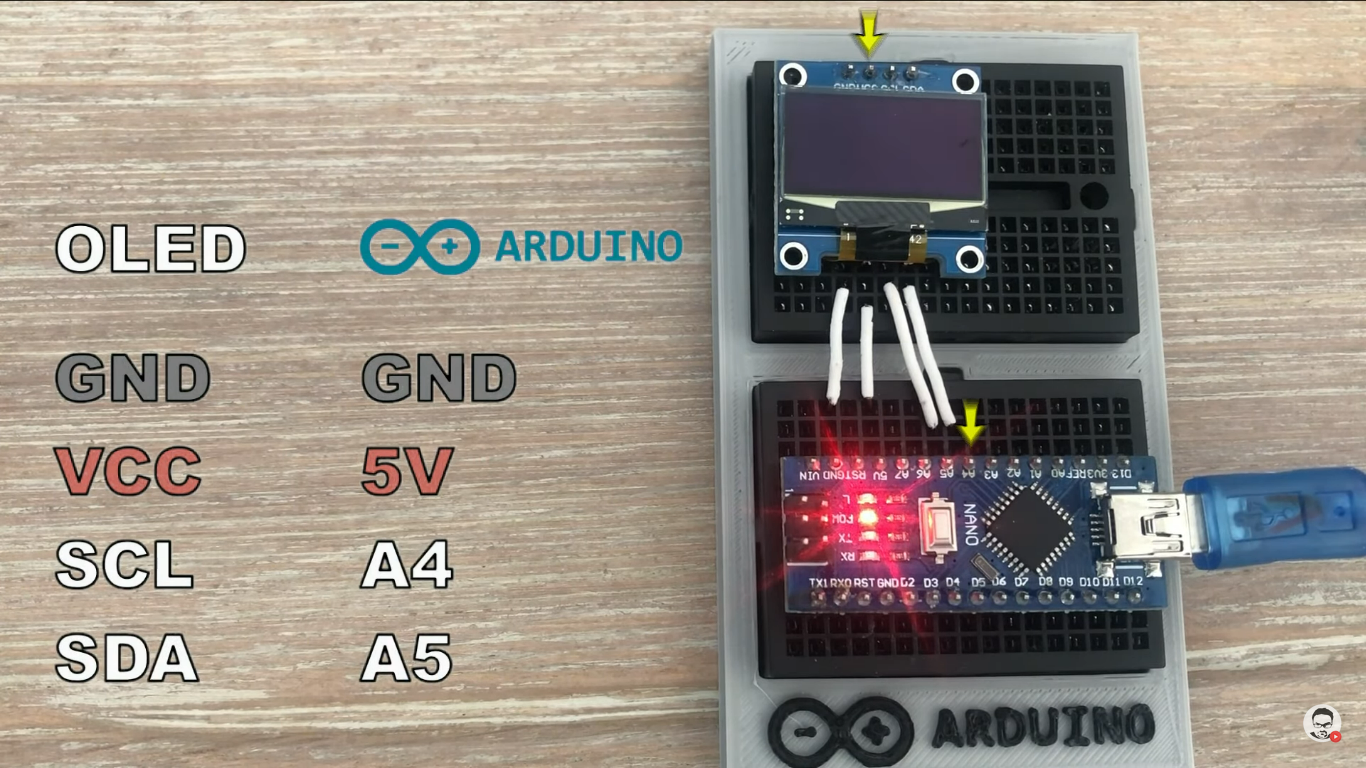
Basic connectivity
See how the OLED display is connected to Arduino
qr_diag_1S11yJmcxK.png
Comments
Only logged in users can leave comments