Devices & Components
Arduino Uno Rev3
Jumper wires (generic)
Infrared Sensor
Led Matrix
Breadboard (generic)
Software & Tools
Arduino IDE
Project description
Code
Led Matrix
arduino
1//Simply connect all the pins as shown in diagram 2//You need to connect 220 ohm resistor to save the led matrix. 3#define ROW_1 2 4#define ROW_2 3 5#define ROW_3 4 6#define ROW_4 5 7#define ROW_5 6 8#define ROW_6 7 9#define ROW_7 8 10#define ROW_8 9 11 12#define COL_1 10 13#define COL_2 11 14#define COL_3 12 15#define COL_4 13 16#define COL_5 A0 17#define COL_6 A1 18#define COL_7 A2 19#define COL_8 A3 20 21const byte rows[] = {ROW_1, ROW_2, ROW_3, ROW_4, ROW_5, ROW_6, ROW_7, ROW_8}; 22 23//if you want to change the design, put your changes in design line wise 24byte OPEN[] = 25{ 26 B00111100, // **** 27 B01000010, // * * 28 B10011001, // * ** * 29 B10111101, // * **** * 30 B10111101, // * **** * 31 B10011001, // * ** * 32 B01000010, // * * 33 B00111100 // **** 34}; 35 36byte CLOSE[] = 37{ 38 B00111100, // **** 39 B01000010, // * * 40 B10000001, // * * 41 B10000001, // * * 42 B10000001, // * * 43 B10000001, // * * 44 B01000010, // * * 45 B00111100 // **** 46}; 47 48 49void setup() 50{ 51 Serial.begin(9600); 52 pinMode(2, OUTPUT); 53 pinMode(3, OUTPUT); 54 pinMode(4, OUTPUT); 55 pinMode(5, OUTPUT); 56 pinMode(6, OUTPUT); 57 pinMode(7, OUTPUT); 58 pinMode(8, OUTPUT); 59 pinMode(9, OUTPUT); 60 pinMode(10, OUTPUT); 61 pinMode(11, OUTPUT); 62 pinMode(12, OUTPUT); 63 pinMode(13, OUTPUT); 64 pinMode(A0, OUTPUT); 65 pinMode(A1, OUTPUT); 66 pinMode(A2, OUTPUT); 67 pinMode(A3, OUTPUT); 68 69 pinMode(A4, INPUT); 70} 71 72void loop() 73{ 74 if((digitalRead(A4))==0) 75 { 76 drawScreen(OPEN); 77 } 78 else 79 { 80 drawScreen(CLOSE); 81 } 82} 83 84void drawScreen(byte buffer2[]) 85{ 86 // Turn on each row in series 87 for (byte i = 0; i < 8; i++) 88 { 89 setColumns(buffer2[i]); // Set columns for this specific row 90 digitalWrite(rows[i], HIGH); 91 digitalWrite(rows[i], LOW); 92 } 93} 94 95 96void setColumns(byte b) 97{ 98 digitalWrite(COL_1, (~b >> 0) & 0x01); // Get the 1st bit: 10000000 99 digitalWrite(COL_2, (~b >> 1) & 0x01); // Get the 2nd bit: 01000000 100 digitalWrite(COL_3, (~b >> 2) & 0x01); // Get the 3rd bit: 00100000 101 digitalWrite(COL_4, (~b >> 3) & 0x01); // Get the 4th bit: 00010000 102 digitalWrite(COL_5, (~b >> 4) & 0x01); // Get the 5th bit: 00001000 103 digitalWrite(COL_6, (~b >> 5) & 0x01); // Get the 6th bit: 00000100 104 digitalWrite(COL_7, (~b >> 6) & 0x01); // Get the 7th bit: 00000010 105 digitalWrite(COL_8, (~b >> 7) & 0x01); // Get the 8th bit: 00000001 106 // If the polarity of your matrix is the opposite of mine 107 // remove all the '~' above. 108}
Downloadable files
Circuitous
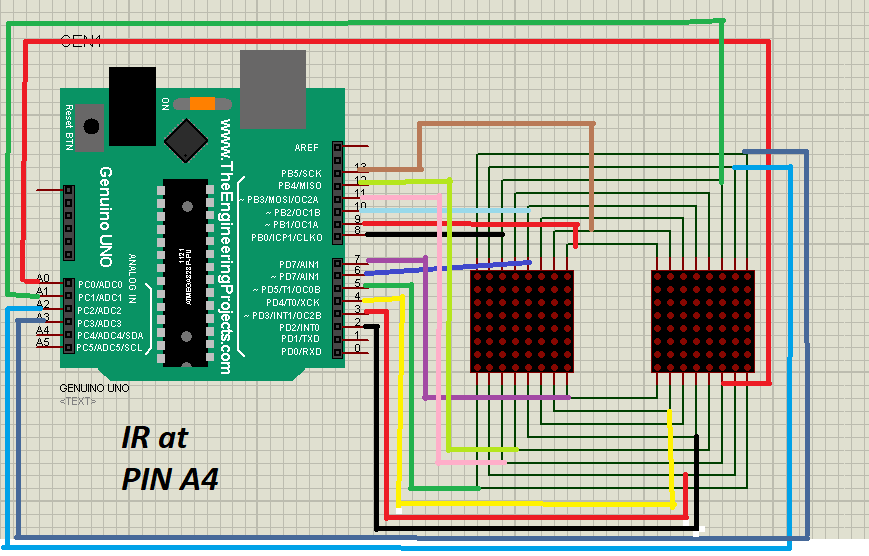
Simply do the connection as done in the image and put Infrared sensor at PIN A4. Provide Vin and GND to both Infrared sensor and Arduino.
Circuitous
Circuitous
Simply do the connection as done in the image and put Infrared sensor at PIN A4. Provide Vin and GND to both Infrared sensor and Arduino.
Circuitous

Comments
Only logged in users can leave comments